
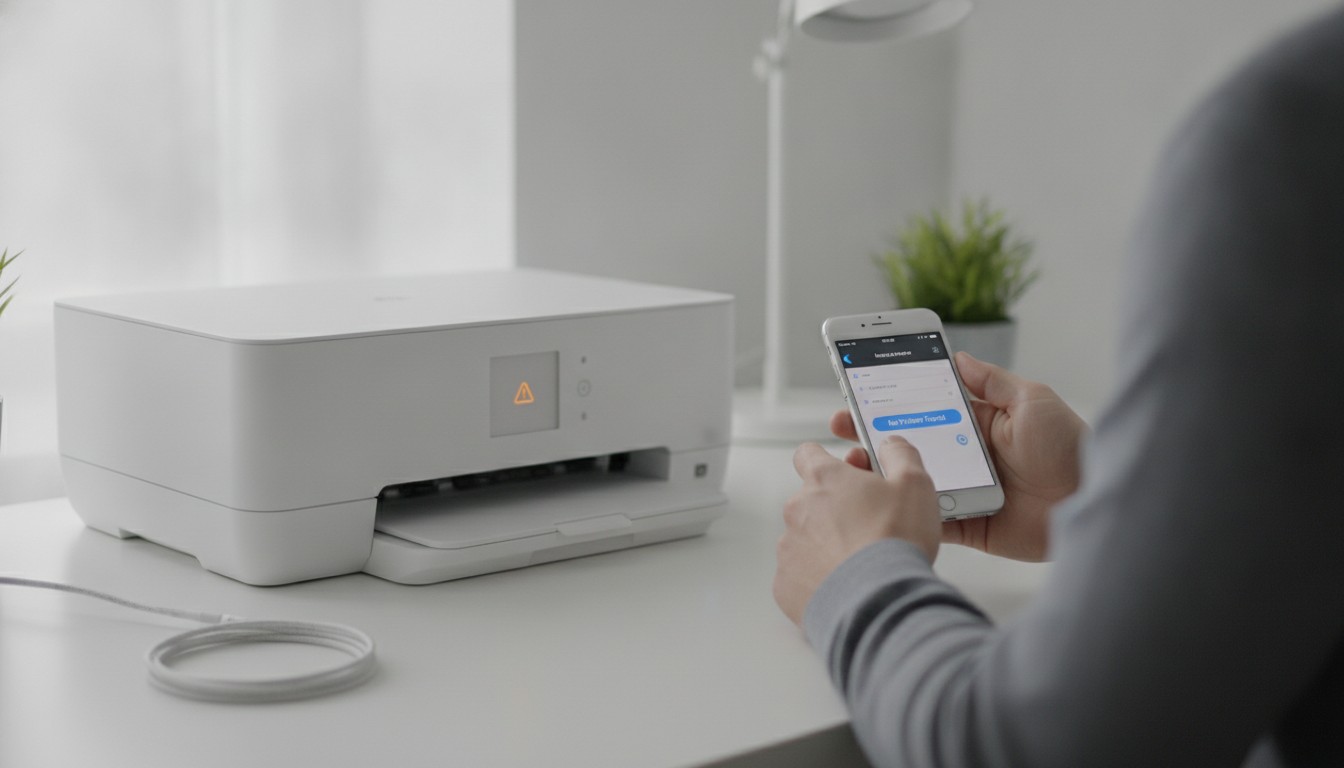
You tap Share, tap Print, and the printer list is empty. Or your printer appears but jobs never arrive. Or everything worked yesterday and today AirPrint acts like your printer does not exist. This is the most common printing complaint from iPhone and iPad users, and it is almost never caused by a broken phone.
AirPrint depends on a chain of network conditions — same Wi-Fi, active printer, Bonjour discovery, no firewall blocking. When any link fails, the whole system reports “no printers found” or sends jobs into a void. The fixes below address each link in order, from the fastest checks to deeper network troubleshooting.
This guide covers twelve specific fixes. Work through them sequentially. Most people solve the problem before reaching fix six.
Before You Start: Confirm the Basics
Two questions determine whether the fixes below will help or whether you need a different approach entirely.
Does your printer support AirPrint? AirPrint is not universal. If your printer is a USB-only model, an older budget printer without Wi-Fi, or a brand that never adopted AirPrint, no amount of iPhone troubleshooting will make it appear. Check your model against our AirPrint-compatible printers list or look for the AirPrint logo on the box.
Are you on an Apple device? AirPrint is Apple-only. Android phones use a different printing system. If you are troubleshooting from an Android device, see our print from Android guide instead.
If both answers are yes, proceed with the fixes below.
Fix 1: Wake the Printer and Wait
Printers enter sleep mode after periods of inactivity. In deep sleep, the Wi-Fi radio may power down, stopping Bonjour advertisements that AirPrint depends on.
Press any button on the printer or tap its power button to wake it. Wait 30–60 seconds for the Wi-Fi indicator light to show a solid connection. Then retry Print from your iPhone.
This single step resolves a surprising number of “it was working yesterday” reports.
Fix 2: Confirm Same Wi-Fi Network
Your iPhone and printer must be on the same Wi-Fi network. Not the same router with different SSIDs for 2.4 GHz and 5 GHz bands (unless both devices are on the same band). Not a guest network. Not your phone on cellular.
On your iPhone: Settings → Wi-Fi — note the network name. On your printer: print a network status page from the front panel and compare the SSID.
Common mismatches:
- iPhone on Guest-WiFi, printer on Home-WiFi
- iPhone on Home-5G, printer on Home-2.4G with band isolation
- iPhone using cellular data because Wi-Fi has a weak signal
Connect both to the same network and retry. This is the number-one cause of AirPrint failure and of printers showing offline.
Fix 3: Toggle Wi-Fi on Your iPhone
Open Settings → Wi-Fi, toggle it off, wait five seconds, toggle it on. This forces your iPhone to rejoin the network and re-scan for Bonjour services.
Alternatively, enable Airplane Mode for five seconds, then disable it. This resets all radios and clears stale network caches.
Retry Print immediately after reconnecting.
Fix 4: Restart the Printer
Power off the printer completely. Unplug it if there is no power switch. Wait 30 seconds. Plug it back in and let it fully boot — most network printers take 60–90 seconds to rejoin Wi-Fi and resume Bonjour advertising.
Once the ready indicator appears, try printing from your iPhone again.
Fix 5: Restart Your Router
Routers that run for months without a reboot develop stale DHCP leases, DNS caches, and multicast routing tables. Unplug your router for 30 seconds, plug it back in, and wait for all devices to reconnect.
After the router is back, wake the printer (Fix 1), confirm same network (Fix 2), and test AirPrint.
Fix 6: Disable VPN and Private Relay
VPNs route all traffic through a remote server, cutting your iPhone off from local Bonjour discovery. Disable any active VPN before printing.
iCloud Private Relay (Settings → [your name] → iCloud → Private Relay) can interfere with local network traffic on some network configurations. Toggle it off temporarily to test whether it is the cause.
Re-enable these services after confirming the print works.
Fix 7: Move Off the Guest Network
Guest networks on consumer routers often enable AP isolation (also called client isolation), which prevents devices on the guest network from communicating with each other — or with devices on the main network.
If your iPhone is on a guest network, move it to the main Wi-Fi. If you must use guest networking, check whether your router allows guest-to-LAN communication and enable it.
Fix 8: Enable AirPrint on the Printer
Some printers — especially office models and older hardware — ship with AirPrint disabled. You need to turn it on through the printer’s settings.
How to check:
- Print a network configuration page from the printer’s front panel.
- Look for an “AirPrint” or “Bonjour” status line. If it says disabled, enable it.
- Access the printer’s web interface by entering its IP address in Safari on your iPhone. Look for AirPrint or Bonjour settings under Network.
- Check the manufacturer’s app (HP Smart, Canon PRINT, etc.) for an AirPrint toggle.
Our setup AirPrint guide will cover brand-specific paths in detail.
Fix 9: Update Printer Firmware
Outdated firmware causes Wi-Fi drops, Bonjour failures, and sleep-mode bugs. Manufacturers release updates that specifically fix AirPrint compatibility.
Update through:
- The printer’s front-panel menu (Settings → Firmware Update)
- The manufacturer’s companion app
- The printer’s web interface
After updating, restart the printer and test AirPrint from your iPhone.
Fix 10: Assign a Static IP Address
When your router reboots, DHCP may assign a new IP address to the printer. Your iPhone’s cached printer entry still points to the old address, causing jobs to fail or the printer to appear offline.
To fix:
- Print a network status page to find the printer’s current IP.
- Log into your router’s admin panel (usually 192.168.1.1 or 192.168.0.1).
- Find the printer in the connected devices list.
- Reserve or assign a static IP (also called DHCP reservation).
- Restart the printer and retry.
This prevents future IP changes from breaking AirPrint discovery.
Fix 11: Fix Router Multicast and Mesh Settings
AirPrint discovery uses multicast DNS (mDNS) via Bonjour. Some routers and mesh systems block or filter multicast traffic, especially between Wi-Fi bands or mesh nodes.
Check these router settings:
- Multicast / IGMP snooping — enable or disable depending on your router; some models block Bonjour when snooping is on.
- mDNS forwarding / Bonjour passthrough — enable on mesh systems (Eero, Orbi, Google Nest Wifi, TP-Link Deco).
- AP / client isolation — disable on the network your printer and phone use.
- Band steering — can move your phone to a different band than the printer. Temporarily disable it to test.
If you use a mesh network with multiple nodes, ensure the printer and iPhone connect to nodes that forward mDNS traffic. Placing the printer near the primary router node often helps.
Our Wi-Fi printer setup guide covers router configuration for reliable printer connectivity.
Fix 12: Reconnect the Printer to Wi-Fi
If every fix above fails, the printer’s Wi-Fi connection may be corrupted. Start fresh.
- On the printer, navigate to Network Settings → Wi-Fi Setup (wording varies by brand).
- Forget or disconnect the current network.
- Re-enter your Wi-Fi password and reconnect.
- Print a network status page to confirm a valid IP address.
- Wait 60 seconds for Bonjour to resume.
- Try AirPrint from your iPhone.
If the printer cannot maintain a Wi-Fi connection at all, the Wi-Fi module may be failing — especially on printers more than five years old. Contact the manufacturer’s support with your model number.
Testing AirPrint After Fixes
Once you have worked through the relevant fixes, test with a simple print job before attempting complex documents.
Quick test:
- Open the Photos app on your iPhone.
- Select any photo.
- Tap Share → Print.
- Your printer should appear within 5–10 seconds.
- Tap Print to send a single copy.
If the photo prints, AirPrint is working. Move on to PDFs, emails, and other content types.
Diagnostic test with Smart Printer:
Open Smart Printer and attempt to print any document. Smart Printer uses the same AirPrint discovery as the built-in Share sheet. If Smart Printer finds your printer, the network is healthy and any remaining issue is app-specific. If Smart Printer also shows no printers, the problem remains on the network or printer side — revisit the fixes above.
When the Printer Appears but Jobs Fail
A different failure mode: the printer shows up in the list, you tap Print, and nothing prints. The job may show as “held” or “spooling” indefinitely.
Causes and fixes:
- Paper jam or empty tray. The printer accepts the job but cannot output it. Check the printer display.
- Offline after selection. The printer went to sleep between discovery and job submission. Wake it and resend.
- Stuck print queue. Cancel all pending jobs from the iPhone print banner (App Switcher). Power-cycle the printer. Resend one job.
- Wrong paper size. The job is rendered but does not match loaded paper. Check paper size in the print dialog.
- Printer error state. Ink empty, cover open, or maintenance required. Check the printer’s front-panel display.
For persistent queue issues, see our fix printer offline guide.
When No Printers Appear at All
If the printer list is completely empty — not grayed out, not showing offline, just blank — the issue is discovery, not connectivity.
Work through Fixes 1–7 first (wake, same network, Wi-Fi toggle, restarts, VPN, guest network). These address 90% of discovery failures.
If the list is still empty, proceed to Fixes 8–12 (AirPrint enabled, firmware, static IP, multicast, Wi-Fi reconnect).
Also check whether your printer is not found for additional discovery-specific steps, and our printer won’t connect guide if you are setting up a new printer.
AirPrint Not Working on iPad
iPad uses the same AirPrint implementation as iPhone. Every fix in this guide applies identically to iPad. The Share → Print workflow, Bonjour discovery, and network requirements are the same.
If AirPrint works on your iPhone but not your iPad (or vice versa), the device that fails is likely on a different Wi-Fi network or has a VPN active. Compare Wi-Fi settings on both devices.
See our print from iPad guide for iPad-specific printing tips once AirPrint is restored.
Preventing Future AirPrint Failures
After you restore printing, these habits reduce repeat failures:
- Keep the printer awake. Extend auto-off timers in the printer’s settings menu.
- Reserve a static IP. Prevents DHCP churn after router reboots.
- Update firmware quarterly. Check the manufacturer’s app or website.
- Avoid guest networks for printing. Use the main Wi-Fi network on your iPhone.
- Disable VPN before printing. Or configure split tunneling for local traffic.
- Place the printer near the router. Strong Wi-Fi signal prevents intermittent Bonjour drops.
When to Accept That AirPrint Will Not Work
Not every printer will work with AirPrint, and not every network supports Bonjour. Accept reality and move to alternatives if:
- Your printer model does not support AirPrint and never will.
- Your corporate network blocks mDNS by policy.
- Your printer’s Wi-Fi module has failed and the printer cannot maintain a wireless connection.
- You are trying to print to a USB-only printer with no network interface.
Alternatives for iPhone users:
- Manufacturer app. HP Smart, Canon PRINT, Epson Smart Panel, and Brother iPrint&Scan support many non-AirPrint models over Wi-Fi.
- Smart Printer. Works with AirPrint-compatible printers only, but offers better format support and scanning when AirPrint itself is functional.
- Email-to-print. Some printers accept jobs sent to a dedicated email address.
- A new printer. If your current model lacks AirPrint and you print from your iPhone regularly, a current Wi-Fi printer with AirPrint support is the most reliable long-term fix.
The Bottom Line
AirPrint failures feel mysterious because the printer is right there, powered on, seemingly ready. But AirPrint is a network protocol, not a physical connection. It needs the printer awake, on the same Wi-Fi, advertising via Bonjour, with nothing blocking multicast traffic between your iPhone and the printer.
Start with the quick fixes — wake the printer, confirm the network, toggle Wi-Fi. Most problems end there. If not, work through the deeper network fixes methodically. Twelve steps sounds like a lot, but each one takes a minute or two, and the vast majority of users find their solution in the first half.
Once AirPrint is working again, print from your iPhone or iPad normally. When you want scanning, Office file support, or richer print controls on top of a healthy AirPrint connection, Smart Printer is ready — but fix the network first. No app can print to a printer your iPhone cannot see.