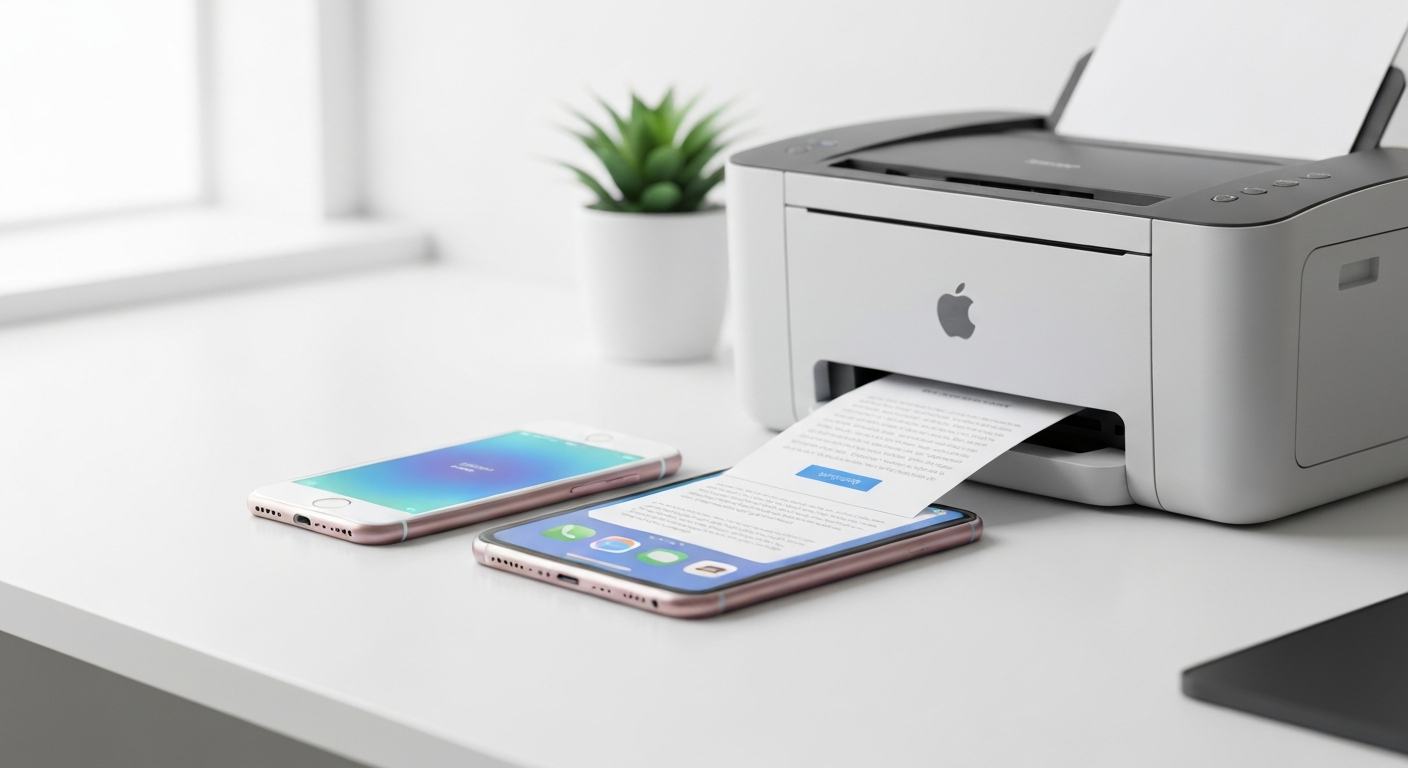
Printing from an iPad should feel as natural as sending an email. Apple built wireless printing directly into iPadOS through AirPrint, which means you do not need cables, driver CDs, or a Mac acting as a middleman. If your printer supports AirPrint and both devices sit on the same Wi-Fi network, you can send a boarding pass, school worksheet, or vacation photo to paper in under a minute.
This guide walks through every practical way to print from your iPad in 2026 — from the built-in Share sheet to apps that extend what you can send to your printer. Whether you use an iPad Pro with a Magic Keyboard or a standard iPad for reading and note-taking, the printing workflow is the same.
What You Need Before You Start
Before you tap Print for the first time, confirm three things are in place. Skipping any one of them is the reason most “my iPad won’t print” complaints happen.
An AirPrint-compatible printer. AirPrint is not universal. Older budget printers and some office models require a manufacturer app instead of Apple’s native print dialog. Check your printer’s specifications or our AirPrint-compatible printers guide to confirm support. Major brands — HP, Canon, Epson, Brother — ship AirPrint on most current consumer models.
A working Wi-Fi connection on both devices. Your iPad and printer must join the same local network. If your router broadcasts a 2.4 GHz and a 5 GHz band under different names, make sure both devices land on the same band. Guest networks often block device-to-device traffic, which prevents AirPrint discovery entirely.
Paper loaded and the printer powered on. It sounds obvious, but an idle printer that entered deep sleep or shows “offline” on its display will not appear in your iPad’s printer list. Wake the printer, confirm it shows a ready status, and try again.
If you are setting up a new printer from scratch, our Wi-Fi printer setup guide covers network configuration step by step.
How AirPrint Works on iPad
AirPrint is Apple’s wireless printing protocol. When you tap Print on your iPad, the device searches the local network for printers advertising AirPrint service. No pairing process exists — discovery is automatic, similar to how AirDrop finds nearby Apple devices.
Once your iPad finds a printer, it sends the print job over Wi-Fi. The printer receives the document, renders it, and outputs the page. You control copies, page range, color or black-and-white, double-sided printing, and paper size from the print preview screen before confirming.
The entire process stays on your local network. Nothing routes through Apple’s servers. That is why printing fails when your iPad and printer are on different networks — they literally cannot see each other.
For a deeper technical overview, read what AirPrint is and how it works.
Print From Any App Using the Share Button
The fastest way to print on iPad is through the Share sheet, which appears in nearly every app that handles documents, images, or web pages.
Step 1: Open the content you want to print — a PDF in Files, a webpage in Safari, an email in Mail, or a photo in Photos.
Step 2: Tap the Share button. On iPad, it is usually in the top-right corner and looks like a box with an upward arrow.
Step 3: Scroll the Share sheet and tap Print. If you do not see it immediately, tap More or look under the action row.
Step 4: Tap Printer at the top of the print preview. Your iPad scans the network and lists available AirPrint printers. Select yours.
Step 5: Adjust settings — number of copies, page range, color, paper size, orientation, and double-sided if your printer supports it.
Step 6: Tap Print in the upper-right corner.
The job sends immediately. You can check progress in the App Switcher by tapping the print indicator banner, or cancel a job from that same banner if you sent the wrong document.
This workflow mirrors printing from an iPhone exactly. If you already print from your phone, your iPad skills transfer without learning anything new.
Print Specific File Types From iPad
Different content types have small workflow differences worth knowing.
Photos and Screenshots
Open the Photos app, select an image, tap Share, then Print. For screenshots, the same path applies. Use the pinch-to-zoom gesture on the print preview thumbnail to confirm cropping before you commit paper and ink.
If you print photos regularly, our guide on printing photos from your phone covers sizing, borderless printing, and quality settings — all of which apply equally to iPad.
PDFs
PDFs live everywhere on iPad: the Files app, Safari downloads, Mail attachments, and third-party storage apps. Open the PDF, tap Share, then Print. Use the page-range selector to print only pages 3–7 instead of an entire 40-page report.
For PDFs that need annotation, page reordering, or batch printing across multiple files, the built-in viewer is limited. That is where a dedicated app earns its place.
Web Pages and Articles
In Safari, tap Share, then Print. Safari generates a print-friendly layout automatically. For pages with heavy ads, consider using Reader View first (tap the AA icon in the address bar) to produce a cleaner printout.
Emails and Attachments
Open the email in Mail, tap Share on the message body, and choose Print. For attachments, open the attachment first, then use Share → Print on the rendered document.
Our print email from phone guide covers threading, attachment handling, and formatting tips that work on iPad too.
Documents (Word, Excel, PowerPoint)
iPadOS can preview Office files through Files and Mail, but printing them with full fidelity sometimes requires an app that understands those formats natively. If the built-in preview looks wrong — missing fonts, broken tables — open the file in a dedicated printing app before sending it to your printer.
Using Smart Printer on iPad
The built-in Share sheet handles basic printing well. Where it falls short is format breadth, scanning, and fine-grained control. Smart Printer fills that gap for iPad users who print more than occasional photos.
Smart Printer supports PDFs, Word, Excel, PowerPoint, JPEG, PNG, RTF, and Keynote files. You can scan a document with your iPad camera, crop it automatically, and send it straight to your AirPrint printer — no separate scanner app required. Paper size, orientation, color or black-and-white, and dual-page layout are all adjustable before you print.
Because Smart Printer uses AirPrint under the hood, it works with the same AirPrint-compatible printers as the built-in system. It does not magically add AirPrint to printers that lack it. What it does is make the printing experience faster and more capable for people who print documents regularly from their iPad.
If you also carry an iPhone, Smart Printer works across both devices with the same feature set. See our connect printer to iPhone guide for the phone-specific setup path.
iPad-Specific Tips for Better Prints
The iPad’s larger screen gives you advantages that phone users do not always get.
Preview before printing. The print preview thumbnail is bigger on iPad, making it easier to spot cut-off margins, wrong orientation, or pages you did not intend to include. Always scroll through multi-page previews.
Use Split View for batch workflows. Open a document in one Split View pane and Smart Printer or Files in the other. Drag and drop files between panes to queue multiple print jobs without closing and reopening apps.
External keyboard shortcuts. If you use a Bluetooth or Magic Keyboard, Cmd+P does not trigger print in most iPad apps — you still need the Share sheet. But keyboard navigation through the print dialog is faster once the preview opens.
Check paper size carefully. iPad apps sometimes default to US Letter when your printer expects A4, or vice versa. Mismatched paper size is the number-one cause of cropped content. Match the setting in the print dialog to the paper loaded in your tray.
Troubleshooting iPad Printing Problems
When printing fails, work through these fixes in order before assuming something is broken.
Printer not listed. Confirm both devices share the same Wi-Fi network. Restart the printer and your iPad. Make sure the printer is not connected only via USB to a computer — it needs an active Wi-Fi connection for AirPrint. If the printer still does not appear, read our full AirPrint not working guide for twelve targeted fixes.
Print job stuck or spooling forever. Cancel the job from the iPad print banner, power-cycle the printer, and resend. Check for a paper jam or empty tray — some printers hold jobs silently when they cannot feed paper.
“Printer offline” message. This usually means the printer lost its network connection, not that your iPad is broken. Our fix printer offline guide walks through network resets, static IP issues, and sleep-mode problems.
Poor print quality. Run a nozzle check or cleaning cycle from the printer’s own maintenance menu. On iPad, confirm you are not printing a low-resolution image at full page size — zoom in on the preview to check sharpness.
Cannot print a specific file type. The built-in viewer may not render complex Office layouts correctly. Open the file in Smart Printer or export it as PDF first, then print the PDF.
iPad vs. iPhone for Printing
Functionally, there is no difference in how AirPrint works between iPad and iPhone. The same Share sheet, the same printer discovery, the same settings. Where iPad wins is screen real estate — previewing a 20-page PDF or adjusting print settings on a 12.9-inch display is simply more comfortable.
If you print from both devices, set up your printer once and it appears on both automatically. No per-device configuration is needed. Our print from phone overview covers cross-device tips if your household mixes iPads, iPhones, and other gear.
When AirPrint Is Not Enough
AirPrint covers the vast majority of home and small-office printing from iPad. Situations where you need something beyond it include:
- Printers without AirPrint. You will need the manufacturer’s app or a network print server. Smart Printer cannot bridge this gap — it requires AirPrint on the printer side.
- USB-only printers. iPad cannot print to a printer connected only by USB cable unless a computer shares it over the network.
- Enterprise print queues. Large offices with secure print release or badge authentication typically use proprietary systems outside AirPrint’s scope.
For everything else — documents, photos, scans, emails, PDFs, boarding passes — AirPrint from iPad handles it cleanly. Set up your printer on Wi-Fi, confirm AirPrint support, and keep your iPad on the same network. That is the entire foundation.
When you want more control over formats and scanning, Smart Printer layers on top of AirPrint without replacing it. Download it, point it at the same printer you already use, and print with the settings your workflow actually needs.