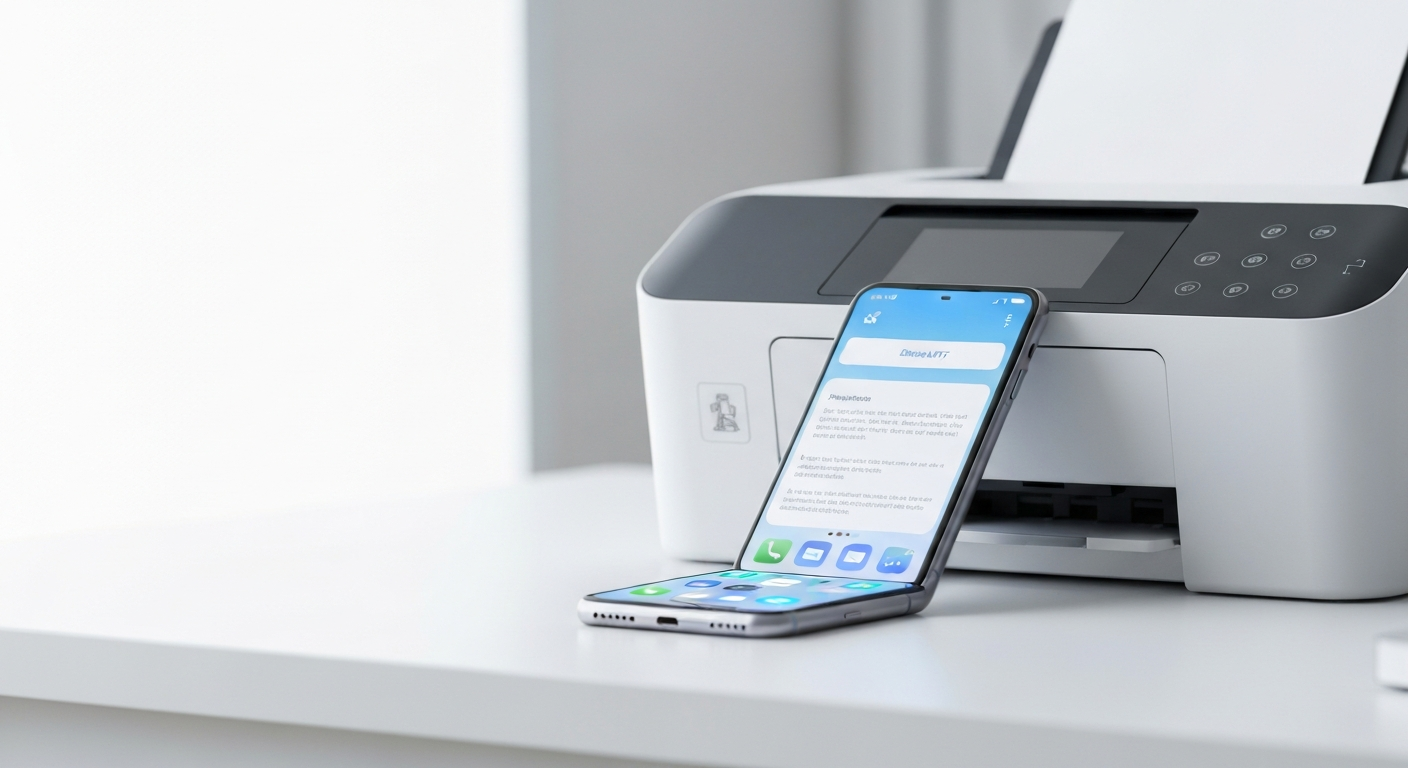
Printing from an Android phone is straightforward once you understand one key difference from Apple devices: Android does not have AirPrint. Where an iPhone or iPad discovers printers automatically through Apple’s built-in system, Android relies on Google’s print framework, your printer manufacturer’s app, or both. None of this is difficult — it just follows a different path.
This guide covers every reliable method to print documents, photos, emails, and PDFs from an Android phone in 2026. We will be direct about what works, what does not, and where manufacturer apps fill the gaps.
How Android Printing Differs From iPhone
If you have used an iPhone or iPad, you may expect a printer to appear the moment you tap Print. That experience is AirPrint — Apple’s proprietary wireless printing built into iOS and iPadOS. It is excellent on Apple devices, but it does not extend to Android.
Android uses the Android Print Framework, introduced in Android 4.4 and refined over subsequent versions. Apps call the system print dialog, which routes jobs through a print service plugin. The default plugin is Google’s own Default Print Service, which discovers printers on your local Wi-Fi network using protocols like IPP (Internet Printing Protocol).
The practical takeaway: your Android phone can print wirelessly, but the setup steps and available printers depend on your specific model and brand. There is no single universal standard the way AirPrint is on Apple hardware.
If someone in your household prints from an iPhone, their workflow is covered in our print from iPhone guide. iPhone users who want extended format support can use Smart Printer, which prints through AirPrint to compatible printers. That app is iOS-only — Android users should use the methods below.
What You Need Before You Start
Gather these pieces before your first print job.
A Wi-Fi-connected printer. Your printer must be on the same local network as your Android phone. USB-only printers connected to a desktop computer will not work unless that computer shares the printer over the network.
Android 8.0 or later (recommended). Printing works on older versions, but current Samsung, Pixel, and OnePlus devices running Android 12–15 offer the most polished print experience.
Your printer manufacturer’s app (often required). While Google’s Default Print Service discovers many network printers, some brands — especially older models — need their companion app installed. HP Smart, Canon PRINT, Epson Smart Panel, Brother iPrint&Scan, and Samsung Mobile Print are the common ones.
The same Wi-Fi network. Both devices must join the same router. Guest networks and AP isolation block printer discovery, the same problem that breaks AirPrint on iPhone.
Enable Printing on Your Android Phone
Before any app can print, Android’s print service must be active.
On stock Android (Pixel, Motorola, Nokia):
- Open Settings.
- Tap Connected devices → Connection preferences → Printing (on some devices: Settings → Connected devices → Printing).
- Enable Default Print Service.
- Tap the three-dot menu and confirm Download printer information is on.
- Wait a few seconds for nearby printers to populate.
On Samsung Galaxy phones:
- Open Settings → Connected devices → More connection settings → Printing.
- Enable Default Print Service.
- Optionally install Samsung Mobile Print for Samsung printers with advanced features.
On other brands (OnePlus, Xiaomi, Oppo):
The path varies slightly, but search Settings for “Printing” or “Print” and enable the default service. If your phone bundles a manufacturer print plugin, enable that too.
Once enabled, the print service runs in the background and discovers printers on your network. You do not need to repeat this setup for every document — it is a one-time configuration.
For detailed network troubleshooting, see our connect printer to Android guide.
Print Using the Share Menu
Most Android apps expose printing through Share or a three-dot overflow menu. The flow is consistent once you learn it.
Step 1: Open the content — a photo, PDF, email, or webpage.
Step 2: Tap Share (or the three-dot menu → Print).
Step 3: Select Print from the share options. If you do not see it, tap More and enable the Print shortcut.
Step 4: At the top of the print preview, tap the printer dropdown. Choose your printer from the list.
Step 5: Adjust copies, color, orientation, paper size, and page range.
Step 6: Tap the printer icon or Save as PDF / Print to send the job.
The print preview renders your document as the printer will receive it. Scroll through multi-page previews on larger phones to catch formatting issues before wasting paper.
Print Specific File Types
Photos
Open Google Photos or your default gallery. Select an image, tap Share, then Print. Choose your printer and paper size. For borderless 4×6 photo printing, your printer’s companion app may offer options the system dialog lacks.
Our print photos from phone guide includes sizing and quality tips that apply to Android galleries.
PDFs
Open the PDF in Google Drive, Files by Google, Adobe Acrobat Reader, or your email app. Tap the menu (three dots) → Print, or Share → Print. Use the page selector to print specific pages rather than an entire document.
For a focused walkthrough, see how to print PDFs from your phone.
Emails and Attachments
In Gmail, open the email, tap the three-dot menu → Print. For attachments, download or preview the file first, then print from the viewer app. Complex HTML emails may not render perfectly — consider forwarding the attachment to yourself and printing the file directly.
Web Pages
In Chrome, tap the three-dot menu → Share → Print, or open the menu and select Print directly. Chrome generates a simplified layout. Enable Simplify page in the print preview to strip ads and sidebars for cleaner output.
Microsoft Office Files
Word, Excel, and PowerPoint files typically need the Microsoft Office app or Google Docs to render correctly before printing. Open the file in the appropriate app, then use that app’s print or export function. Raw Office files opened in a generic file manager may not print with correct formatting.
Text Messages
Printing text message threads requires a screenshot or a third-party backup app. Take a scrolling screenshot (available on Samsung and Pixel devices), then print the resulting image. Our print text messages guide covers both Android and iPhone approaches.
Manufacturer Apps: When the Default Service Is Not Enough
Google’s Default Print Service discovers many printers, but it does not catch everything. If your printer never appears in the system dialog, install the manufacturer’s app.
| Brand | App | Best for |
|---|---|---|
| HP | HP Smart | Setup, scanning, ink monitoring, remote print |
| Canon | Canon PRINT | Photo printing, scanner access, PIXMA models |
| Epson | Epson Smart Panel | EcoTank models, maintenance, firmware updates |
| Brother | iPrint&Scan | Label printing, document scanning |
| Samsung | Samsung Mobile Print | Samsung printers and some MFP models |
These apps connect to your printer over Wi-Fi, often with a guided setup that the generic print service skips. They also unlock features like scanning to your phone, ink level monitoring, and firmware updates.
The trade-off is app dependency. You are tied to the manufacturer’s ecosystem rather than a system-wide print dialog. For many Android users, that is a reasonable exchange for reliable printing.
Printing Without Google Cloud Print
Google shut down Cloud Print in December 2020. If you relied on it to print remotely or through older Chromebooks, that path is gone. Modern Android printing is entirely local-network based.
Alternatives for remote or cross-platform needs:
- Manufacturer cloud services. HP Smart and Epson Smart Panel offer email-to-print and remote queue features for some models.
- Email-to-print. Many printers accept jobs sent to a dedicated email address configured during setup.
- Third-party print servers. Apps like PrinterShare and ThinPrint connect Android to printers over the internet, though setup is more complex.
Our Google Cloud Print alternative guide covers the full landscape of post-Cloud-Print options for both Android and iPhone users.
Troubleshooting Android Printing
Printer not found. Verify same Wi-Fi network. Disable mobile data temporarily to force Wi-Fi-only connectivity. Restart the printer and phone. Re-enable the Default Print Service. Install the manufacturer app as a fallback.
Print job hangs. Cancel from the notification shade, restart the printer, and resend. Check for paper jams, empty trays, or toner warnings on the printer display.
“Printer unavailable” or offline. The printer lost its network connection. Power-cycle it, confirm the Wi-Fi indicator is solid, and reprint. See our fix printer offline guide for network-level fixes that apply across platforms.
Wrong layout or missing content. The rendering app may not support the file format. Convert to PDF first, then print the PDF. Office files especially benefit from this approach.
Bluetooth printing. Some portable printers support Bluetooth pairing directly with Android. This is separate from Wi-Fi printing and requires the printer’s companion app. Our Bluetooth printing guide covers pairing and limitations.
Guest network isolation. If your phone is on a guest Wi-Fi segment, it cannot reach the printer on the main network. Move both devices to the same segment.
Android Printing Tips for Better Results
Update everything. Printer firmware, manufacturer apps, and Android system updates all affect print compatibility. Check for updates before troubleshooting deeper.
Use PDF as a universal format. When a document looks wrong in the print preview, export or save as PDF, then print the PDF. This sidesteps rendering differences between apps.
Check paper size. Android defaults vary by region — A4 in Europe, Letter in the US. Mismatch causes cropped margins. Match the print setting to the paper in your tray.
Save as PDF for records. The Android print dialog includes a Save as PDF option that creates a local PDF without a printer. Useful for archiving receipts, tickets, or boarding passes digitally.
Print boarding passes early. Open the airline PDF or wallet pass, print from the viewer, and confirm barcodes are sharp. Our print boarding pass guide covers barcode legibility tips.
iPhone vs. Android: An Honest Comparison
Apple’s AirPrint advantage is simplicity. Tap Print, pick a printer, done — on any app, on any AirPrint-compatible printer, with no plugin installation. Android’s advantage is openness: manufacturer apps add scanning, ink tracking, and model-specific features that AirPrint’s minimal dialog does not include.
Neither platform prints to a non-compatible printer without extra software. Android users need manufacturer apps; iPhone users need AirPrint on the printer or a manufacturer app of their own.
If your household runs both platforms, the printer setup is shared — one Wi-Fi-connected printer serves both, accessed through different software on each device. iPhone and iPad users in the home can print through AirPrint or Smart Printer for document-heavy workflows. Android users should lean on the Default Print Service plus the manufacturer’s app for the same hardware.
When to Look Beyond Your Phone
Phone-based printing covers everyday needs — documents, photos, tickets, forms. Situations that push past mobile printing include:
- Large-volume office jobs with stapling, collating, or secure release queues.
- Specialty media like vinyl, cardstock, or roll paper unsupported by mobile print dialogs.
- Printers without Wi-Fi that only connect via USB to a single computer.
For everything else, your Android phone is a capable print terminal. Enable the print service, install your manufacturer’s app if needed, keep both devices on the same network, and use Share → Print from any app that holds your content. That is the complete Android printing workflow — no AirPrint required, no computer in the middle, and no subscription to a discontinued cloud service.
If the printer is not on your network yet, start with our connect a printer to an Android phone guide, which covers pairing over Wi-Fi, Wi-Fi Direct, and USB OTG. For a side-by-side view of how this differs on iPhone, see print from phone, and if you landed here after Google Cloud Print shut down, our Google Cloud Print alternative guide explains what replaced it.