
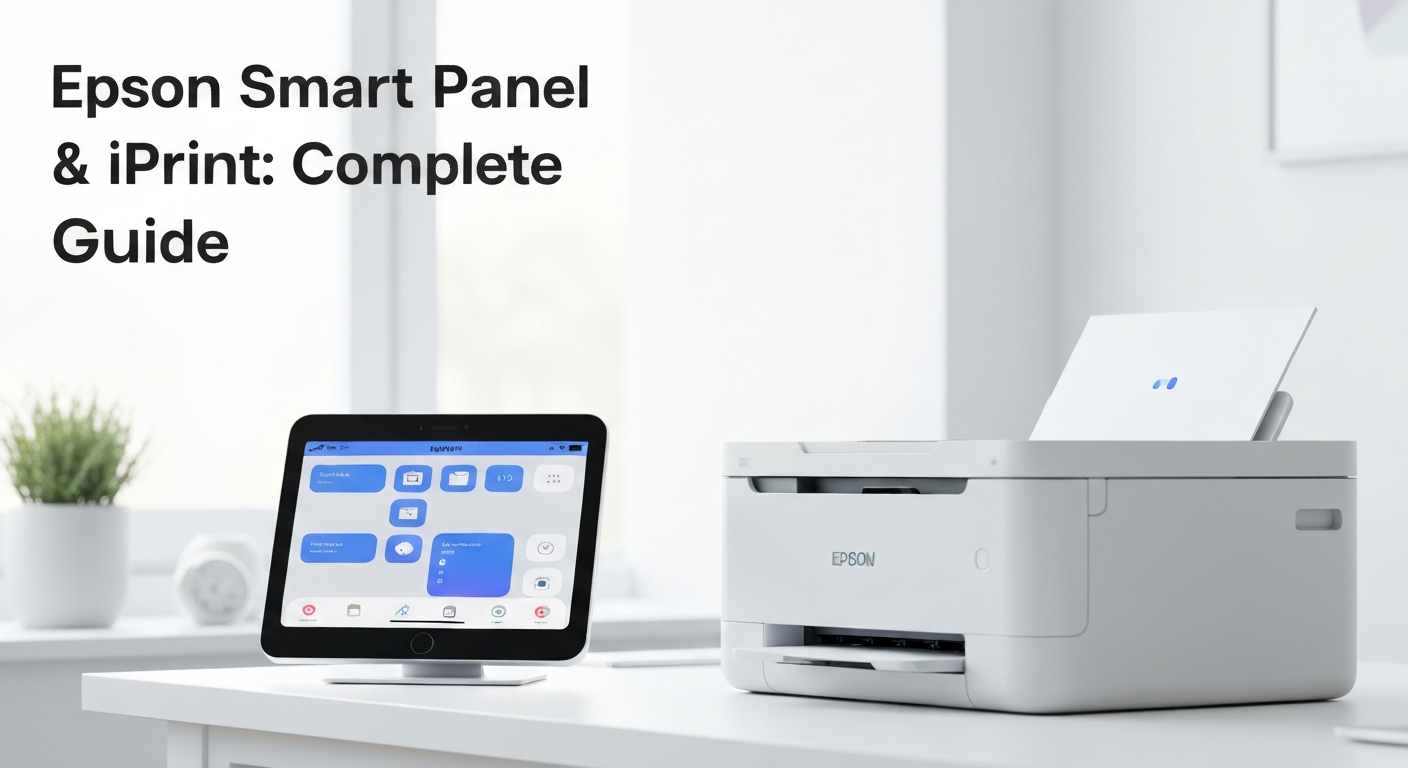
If you own an Epson printer and search the App Store for “Epson print,” you will find Epson Smart Panel — and depending on your region, you might also see Epson iPrint, which is the older app Epson is gradually replacing. Both names show up in support documents, forum threads, and printer setup cards that shipped in the box five years ago. The confusion is understandable.
This guide explains what Epson Smart Panel actually does, how it differs from iPrint, when you need it versus when AirPrint alone is enough, and what to do when the app cannot find your printer. Epson is one of the more iPhone-friendly printer brands for AirPrint — our Epson AirPrint printers guide covers which models support it — but the app layer adds features the built-in print dialog does not offer.
Epson Smart Panel vs. Epson iPrint
Epson iPrint was the company’s mobile printing app for years. It handled wireless setup, mobile printing, scanning, and basic printer maintenance. Around 2021–2022, Epson began rolling out Epson Smart Panel as its replacement in most markets, with a redesigned interface and support for newer EcoTank and WorkForce models.
In practice today:
- New Epson printers (roughly 2021 onward) expect Smart Panel for guided Wi-Fi setup and full feature access.
- Older Epson printers may still work with iPrint if that is what you already have installed.
- Both apps can coexist on your phone, but you only need one. If Smart Panel recognizes your printer, use it and ignore iPrint.
The core functions overlap: print photos and documents, scan to your phone, check ink or toner levels, run maintenance tasks, and order supplies. Smart Panel adds a cleaner onboarding flow for connecting printers to Wi-Fi — especially useful on models without a touchscreen, where the app walks you through pushing the Wi-Fi button at the right moment.
Neither app is required for AirPrint printing on compatible models. If your Epson supports AirPrint, your iPhone finds it through the built-in Share menu without any Epson software installed. Smart Panel becomes valuable when you want scanning, ink monitoring, or guided setup — not for sending a one-off PDF from Mail.
What Epson Smart Panel Does Well
Smart Panel is Epson’s control center for your printer from a phone or tablet. Here is what it handles reliably.
Wi-Fi setup. This is the strongest reason to install it. Many Epson home printers have minimal displays — a few buttons and a small LCD, or no screen at all. Smart Panel uses Bluetooth and your phone’s Wi-Fi to walk through connecting the printer to your home network step by step. Without the app, you are deciphering button sequences from a paper manual.
Mobile printing. You can print photos, PDFs, and web pages from within Smart Panel. On iPhone, this is redundant if you already use AirPrint from Safari, Photos, or Files — our print from iPhone guide covers that workflow in detail. Smart Panel’s print feature is more useful on Android or when you want to print something already inside the app, like a scanned document.
Scanning. Point your phone camera at a document or use the printer’s flatbed scanner (on all-in-one models), and Smart Panel saves the result as a PDF or image. Quality is comparable to other manufacturer scan apps. If you scan and print frequently, a third-party app like Smart Printer combines scanning with a document library and AirPrint output in one place — it is not affiliated with Epson and uses the same AirPrint protocol your iPhone already supports.
Ink and maintenance. On EcoTank models, Smart Panel shows tank levels. On cartridge-based Expression and WorkForce printers, it tracks individual cartridges. You can run nozzle checks, head cleaning cycles, and alignment from the app instead of navigating the printer’s physical menu.
Firmware updates. Epson pushes firmware through Smart Panel that can fix connectivity bugs and improve AirPrint stability. If your Epson stopped appearing on your iPhone after a router change, a firmware update through Smart Panel is worth trying before deeper troubleshooting.
When You Do Not Need Smart Panel
Skip the app — or uninstall it after setup — if your only goal is printing from your iPhone and your Epson already supports AirPrint.
The iOS print flow is simple: open any document, tap Share, tap Print, select your Epson. No account, no Epson login, no app running in the background. This works from Safari, Mail, Photos, Files, Notes, and most third-party apps. For background on the protocol, see our what is AirPrint guide.
You also do not need Smart Panel if:
- Your printer is already on Wi-Fi and printing fine from your Mac or PC.
- You only print occasionally and do not care about ink level notifications.
- You use a different scan app and never scan through the printer.
Smart Panel adds convenience, not capability, for AirPrint printing. The print job itself travels the same path whether you launch it from Smart Panel or from the iOS Share sheet.
How to Set Up Epson Smart Panel
Download Epson Smart Panel from the App Store (iPhone/iPad) or Google Play (Android). Open the app and create an Epson Connect account if prompted — some features like email printing and remote status require it, but local Wi-Fi printing and scanning often work without an account.
Connect your printer to Wi-Fi:
- Turn on the printer and make sure it is in setup mode (usually indicated by a blinking Wi-Fi light — check your model’s quick start guide).
- Open Smart Panel and tap Add Printer.
- Grant Bluetooth and location permissions when asked. iOS and Android require location access for Wi-Fi discovery during setup — this is normal, not a privacy red flag from Epson specifically.
- Select your printer model from the list or let the app search automatically.
- Choose your home Wi-Fi network and enter the password. The app transfers credentials to the printer.
- Wait for the Wi-Fi light to turn solid. The printer and your phone should now be on the same network.
If you have already connected the printer to Wi-Fi through the printer’s own menu or WPS button on your router, skip straight to adding the printer in the app — it should appear on the local network without repeating setup.
For iPhone users who prefer to avoid the Epson app entirely during setup, our connect printer to iPhone guide covers getting an AirPrint printer on your network using methods that do not require manufacturer software.
Printing From iPhone With and Without the App
Without Smart Panel (recommended for most iPhone users):
- Confirm your Epson is on the same Wi-Fi network as your iPhone.
- Open the document in any app.
- Tap Share → Print.
- Select your Epson printer, adjust copies and color settings, tap Print.
This is the fastest path for everyday printing. It is the same method described in our print from iPhone guide and works with every AirPrint-compatible Epson model.
With Smart Panel:
- Open the app and select your printer.
- Tap Print, then choose a photo, document, or scanned file from your phone.
- Adjust settings and send the job.
The output is identical. Smart Panel is a different front door to the same printer. Use it when the file is already in the app or when you are on Android and want a unified Epson interface.
Scanning With Epson Smart Panel
On all-in-one Epson models with a flatbed scanner or automatic document feeder, Smart Panel can initiate scans from the printer hardware. The scanned file arrives on your phone as a PDF or JPEG.
For quick captures without walking to the printer, the app also supports camera scanning — photograph a document and the app crops and enhances it. Results are good for receipts and single-page forms but not as sharp as a flatbed scan for photos or detailed documents.
If scanning is a regular part of your workflow, compare Smart Panel against other options in our best printer apps roundup. Smart Printer and Adobe Scan are common alternatives; Smart Printer adds direct AirPrint output after scanning, which saves a step if you need to print the scan immediately.
Troubleshooting Epson Smart Panel
App cannot find the printer. Verify both devices are on the same Wi-Fi network — not guest Wi-Fi on the phone and main network on the printer. Wake the printer from sleep. Restart the printer and router if the issue persists. On iPhone, if AirPrint also fails to find the printer, the problem is network-level, not app-specific. See our AirPrint not working guide for a full diagnostic sequence.
Printer found in Smart Panel but not in AirPrint. Run a firmware update through Smart Panel. Check whether AirPrint is enabled in the printer’s network settings — on some models it can be toggled off. Confirm your model is on the AirPrint compatibility list in our Epson AirPrint printers guide.
Smart Panel crashes or freezes during setup. Update the app to the latest version. On iPhone, force-quit and reopen. If setup repeatedly fails, try the manual Wi-Fi setup method from the printer’s control panel using the SSID and password printed on your router label.
Scan quality is poor. Clean the scanner glass. For camera scans, use good lighting and hold the phone parallel to the document. For flatbed scans, increase the resolution in scan settings.
iPrint vs. Smart Panel conflict. Uninstall iPrint if you have moved to Smart Panel. Two Epson apps fighting for the same printer can cause discovery issues.
Epson Smart Panel vs. Third-Party Print Apps
Manufacturer apps like Smart Panel are built for Epson printers specifically. They expose maintenance features — ink tanks, nozzle checks, firmware — that generic apps cannot access.
Third-party apps like Smart Printer take a different approach. They do not replace Epson’s maintenance tools, but they offer a brand-neutral document workflow: import files from email and cloud storage, scan with the phone camera, organize a print queue, and send everything to any AirPrint printer on your network — including Epson.
| Feature | Epson Smart Panel | Smart Printer | iOS Share → Print |
|---|---|---|---|
| Wi-Fi setup | Yes | No | No |
| AirPrint printing | Yes | Yes | Yes |
| Ink monitoring | Yes | No | No |
| Firmware updates | Yes | No | No |
| Document library | Basic | Yes | No |
| Phone camera scan | Yes | Yes | No |
| Brand required | Epson | Any AirPrint | Any AirPrint |
Honest recommendation: install Smart Panel during initial printer setup, use it for ink alerts and firmware, and print daily documents through AirPrint or Smart Printer depending on whether you want Epson’s interface or a consolidated document inbox. There is no wrong choice — they solve different problems.
Which Epson Printers Work With Smart Panel?
Smart Panel supports most current Epson consumer and office printers with Wi-Fi — EcoTank, WorkForce, Expression, and SureColor home models. Very old printers that only worked with iPrint may have limited Smart Panel support; check Epson’s compatibility list for your exact model number.
AirPrint support and Smart Panel support are related but not identical. Nearly all Wi-Fi EcoTank and WorkForce models support both. If you are buying a new Epson primarily for iPhone printing, verify AirPrint on the spec sheet — Smart Panel is a bonus, not a substitute for AirPrint.
Browse our searchable database at /airprint-printers/ to filter Epson models by AirPrint support, or read the full breakdown in our Epson AirPrint printers guide.
The Bottom Line
Epson Smart Panel is a capable companion app for Epson owners — especially during Wi-Fi setup and for ink monitoring on EcoTank printers. It replaced iPrint in most regions and is the app Epson ships with new printers today.
For iPhone printing specifically, you do not need it. AirPrint built into iOS handles the actual print job, and apps like Smart Printer can improve the workflow around printing and scanning without tying you to one brand. Keep Smart Panel installed for maintenance, use AirPrint for quick prints, and reach for a third-party app when you want a single inbox for everything you print and scan.
That combination covers what most households and home offices actually need — without turning a simple print job into a software project.