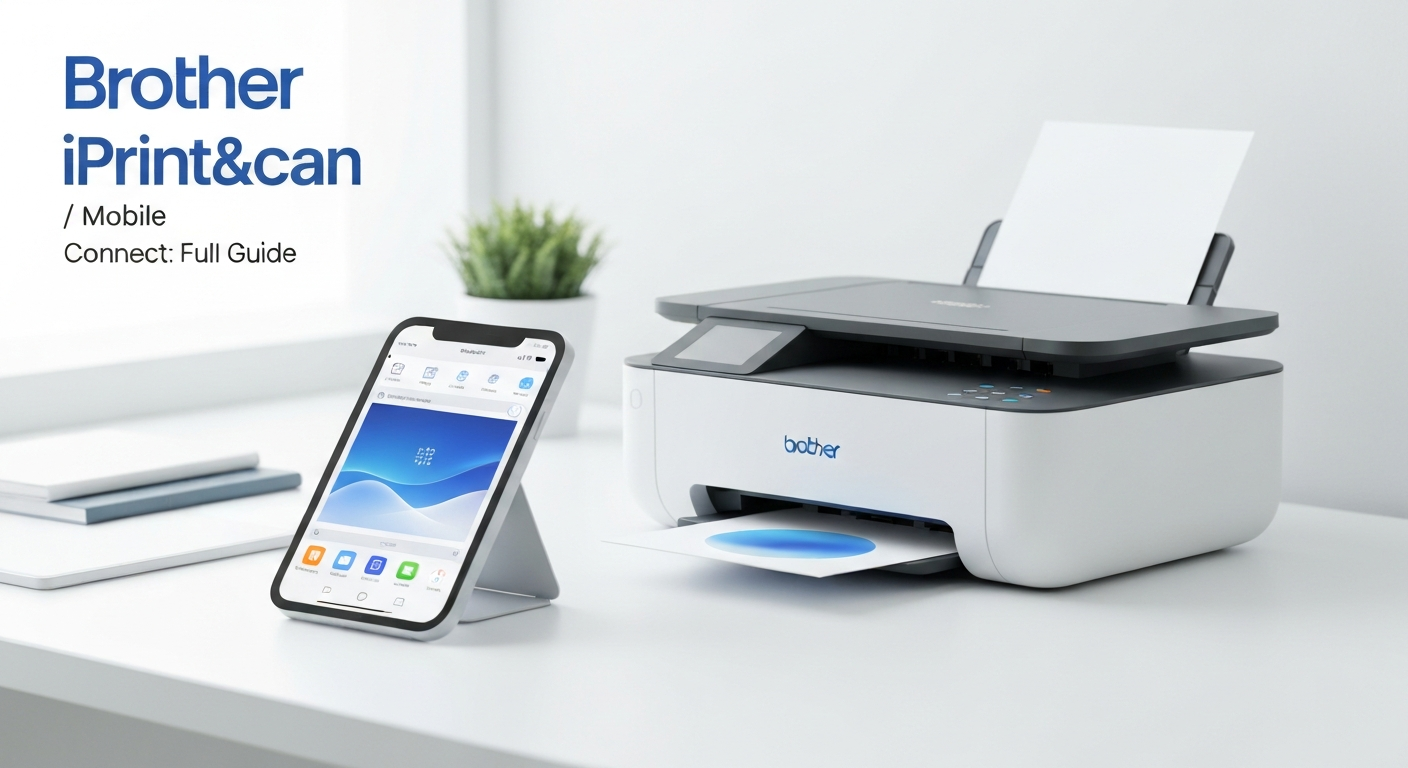
Brother makes printers that work well with iPhones out of the box — most wireless models support AirPrint without any app installed. So why does Brother also publish iPrint&Scan, now rebranding it as Brother Mobile Connect? Because printing is only half of what an all-in-one printer does, and AirPrint handles just the output side. If you want to scan a signed contract from your Brother MFC printer to your iPhone, check toner levels without walking to the printer, or print a file stored in Dropbox, you need the manufacturer’s app.
This guide covers what Brother iPrint&Scan and Mobile Connect actually do, how to set them up on iPhone and Android, which features require the app versus AirPrint alone, and when a third-party app might serve you better. For Brother AirPrint compatibility by model, see our Brother AirPrint printers guide. For the broader app landscape, see our best printer apps roundup.
What Brother iPrint&Scan Does
Brother iPrint&Scan is a free mobile app that connects your phone to Brother printers over Wi-Fi. It is not a subscription service and does not require a Brother account for basic features, though some cloud integrations may prompt you to sign in to third-party services.
The app covers four main areas.
Printing from your phone. Select documents or photos from your phone’s storage, cloud services, or clipboard and send them to your Brother printer. This works similarly to AirPrint but through Brother’s interface, which some users prefer for the file browser and print setting controls.
Scanning to your phone. Place a document on your Brother all-in-one’s scanner glass or in the automatic document feeder, tap Scan in the app, and the digital image appears on your phone. This is the feature AirPrint cannot replicate — scanning requires the Brother app or the printer’s own web interface.
Printer status and maintenance. View ink or toner levels, paper tray status, and error messages. Some models support firmware update notifications through the app.
Cloud service integration. Connect to Google Drive, Dropbox, Evernote, OneDrive, and other services to print cloud-stored files directly or save scans to cloud folders.
Brother Mobile Connect is the newer name for the same app. If you already have iPrint&Scan installed, it may update in place or prompt you to switch to the new branding. Functionality remains consistent during the transition.
When You Need the App vs. When AirPrint Is Enough
This is the decision most Brother printer owners get wrong — downloading the app when they only needed AirPrint, or skipping the app when they needed scanning.
You do not need Brother iPrint&Scan for:
- Printing a PDF from Mail, Files, or Safari
- Printing a photo from the Photos app
- Printing a webpage from a browser
- Any basic print job where you already have the file open in an iOS or Android app with a Print option
AirPrint handles all of these. Open the file, tap Share, tap Print, select your Brother printer. Our print from phone guide covers this workflow for both iPhone and Android.
You do need Brother iPrint&Scan for:
- Scanning a document from your Brother MFC or DCP to your phone
- Checking ink or toner levels remotely
- Printing a file from Dropbox, Google Drive, or OneDrive without downloading it first
- Running printer maintenance tasks from your phone on supported models
- Users who want a single file browser for everything they print
If you own a Brother HL laser printer without a scanner, the app is optional for printing and mainly useful for status monitoring. If you own an MFC all-in-one, the scanning feature alone justifies installing it.
Setting Up Brother iPrint&Scan on iPhone
Setup is straightforward if your Brother printer is already on Wi-Fi.
Download the app. Search “Brother iPrint&Scan” or “Brother Mobile Connect” on the App Store. Confirm the developer is Brother Industries, Ltd. to avoid third-party imitations.
Connect your printer to Wi-Fi. If you have not done this yet, use the printer’s control panel: Menu → Network → WLAN → Setup Wizard. Select your network and enter the password. Wait for the Wi-Fi indicator to show a steady connection.
Open the app and add your printer. Launch iPrint&Scan. The app scans your network for Brother printers. Tap your model when it appears. On some newer printers, you can scan a QR code displayed on the printer’s screen for faster pairing.
Grant permissions. The app may request access to your local network, photos, and camera. Local network access is required for printer discovery. Photo access is needed if you print images from your camera roll.
Test with a print or scan. Try printing a test page from the app, or place a document on the scanner and run a test scan. If both work, setup is complete.
Your iPhone and printer must remain on the same Wi-Fi network. If your router has separate 2.4 GHz and 5 GHz bands with different names, connect both devices to the same band. Most Brother printers use 2.4 GHz.
For iPhone users who have never connected a printer before, our connect printer to iPhone guide covers the network prerequisites step by step.
Setting Up on Android
The Android setup mirrors iOS with a few platform-specific details.
Download Brother iPrint&Scan or Brother Mobile Connect from Google Play.
Ensure your Brother printer is on the same Wi-Fi network as your Android phone.
Open the app, let it discover your printer, and tap to select it.
For printing from other Android apps — Chrome, Gmail, Google Drive — you can also use Android’s built-in print function. Install the Brother Print Service Plugin from Google Play if your phone’s print menu does not detect the printer automatically.
Android printing through the system print service and printing through the Brother app both work with AirPrint-compatible Brother models. See our print from Android guide for the system-level approach.
Printing Through Brother iPrint&Scan
The app’s print workflow differs slightly from the iOS Share menu.
Open Brother iPrint&Scan and tap Print.
Browse to your file. The app provides tabs for local files, photos, clipboard content, and connected cloud services.
Select the file and tap Next.
Choose your printer if multiple Brother devices are on the network.
Adjust settings: paper size, orientation, color or black-and-white, number of copies, two-sided printing, and page range.
Tap Print to send the job.
The advantage over AirPrint is the integrated file browser — especially for cloud services. Instead of opening Dropbox, downloading a file, then switching to Files to print it, you browse and print from one app.
The disadvantage is an extra step compared to printing directly from the app where the file is already open. If you are reading a PDF in Mail and want to print it, Share → Print is faster than switching to Brother iPrint&Scan.
Scanning With Brother iPrint&Scan
Scanning is where the app earns its place on your phone.
Open the app and tap Scan.
Select your Brother MFC or DCP printer.
Choose scan settings: color or black-and-white, resolution (150 dpi for documents, 300 dpi or higher for photos or detailed images), document size, and file format (PDF or JPEG).
Place your document face-down on the scanner glass or face-up in the automatic document feeder for multi-page scans.
Tap Scan in the app. The printer scans, and the image transfers to your phone.
Save or share the result. Options include saving to your camera roll, emailing, or uploading to a connected cloud service.
For multi-page documents, load the stack in the ADF and the app captures each page sequentially. This is significantly faster than scanning page by page on the glass.
Scan quality depends on the printer’s hardware, not the app. A Brother MFC-J series produces good document scans for everyday use. For archival-quality scanning, dedicated scanner apps or a flatbed scanner may produce better results, but the Brother app handles receipts, contracts, forms, and signed documents well.
Brother iPrint&Scan vs. Smart Printer
Both apps print to Brother AirPrint-compatible printers, but they serve different user preferences.
Brother iPrint&Scan is made by Brother for Brother printers. It offers the deepest integration with Brother hardware — scanning, toner monitoring, firmware checks, and Brother-specific maintenance. It does not work with HP, Canon, or Epson printers.
Smart Printer is a third-party iOS app that works with any AirPrint-compatible printer, including Brother models. It is not affiliated with Brother or any other printer manufacturer. It focuses on document management, a unified print workflow, and phone-based scanning through the camera — not through the printer’s flatbed scanner.
Choose Brother iPrint&Scan if you own a Brother all-in-one and need scan-from-printer functionality. Choose Smart Printer if you want a brand-agnostic app for organizing and printing documents across different printers, or if you need phone-camera scanning rather than flatbed scanning.
For a full comparison across all major printer apps, see our best printer apps guide.
Neither app adds AirPrint to a Brother printer that lacks it. Both rely on your printer already supporting AirPrint for wireless printing. Confirm your model on our Brother AirPrint compatibility guide or the main AirPrint compatible printers list.
Cloud Services and Advanced Features
Brother iPrint&Scan integrates with several cloud platforms.
Google Drive, Dropbox, OneDrive, Evernote, Box — print files stored in the cloud without downloading them to your phone first. After scanning, save directly to a cloud folder.
Email — send scanned documents as email attachments from within the app.
Creative Center — Brother’s template library for labels, greeting cards, and calendars. Niche but useful if you print these regularly.
Cloud features require signing into each service within the app. Brother does not store your cloud credentials on its own servers — authentication happens directly with each provider — but review the app’s privacy policy if you handle sensitive documents.
Troubleshooting Common Issues
App cannot find the printer. Verify same Wi-Fi network. Restart the printer and force-close the app. On iPhone, check Settings → Privacy → Local Network and confirm iPrint&Scan has access. Re-add the printer manually using its IP address if auto-discovery fails — find the IP on the printer’s network configuration report.
Scan button is grayed out. Your printer model may not support scanning (HL laser printers without an MFC/DCP scanner), or the app has lost connection. Re-select the printer in the app settings.
Print job stuck or failed. Check the printer’s display for errors — paper jam, out of toner, paper tray empty. Cancel the job in the app and resend. If AirPrint printing works but the app fails, update the app and printer firmware.
App crashes on launch. Update to the latest version. Brother periodically releases compatibility fixes for new iOS and Android versions. If problems persist, delete and reinstall the app — your printer pairing will need to be set up again.
Poor scan quality. Clean the scanner glass with a lint-free cloth. Increase resolution in scan settings. Use the flatbed for wrinkled or fragile documents instead of the ADF.
If AirPrint printing also stops working — not just the app — the issue is network-level. See our AirPrint not working guide for a full diagnostic walkthrough.
Privacy and Permissions
Brother iPrint&Scan requests several phone permissions.
Local network access — required to discover and communicate with your printer. Without this, the app finds nothing.
Photos and files — required to select documents and images for printing.
Camera — only needed if you use the app’s camera-based scan feature on some versions, not for flatbed scanning.
Notifications — optional, for ink low alerts and scan completion.
Brother’s privacy policy covers data handling. Print and scan jobs sent over your local Wi-Fi network stay local — they do not route through Brother’s cloud unless you explicitly use a cloud service integration. If document privacy is a priority, local network printing and scanning is the most secure path.
Do You Actually Need This App?
Here is the honest summary.
Skip it if you own a Brother printer, only print (never scan), and are comfortable using the Share → Print menu in iOS or Android’s print function. AirPrint is simpler and already on your phone.
Install it if you own a Brother MFC or DCP all-in-one and want to scan documents to your phone. This is the primary reason to have the app.
Consider it if you print from cloud storage regularly, want ink level notifications, or prefer a dedicated file browser for print jobs.
Look elsewhere if you own printers from multiple brands and want one app for all of them. Smart Printer or the built-in AirPrint dialog serve cross-brand needs better than a manufacturer-specific app.
Brother iPrint&Scan and Mobile Connect are competent, free tools that do what they claim. They are not mandatory for Brother printing — AirPrint already solved that — but they fill the gaps AirPrint leaves open, especially scanning. Install it, pair your printer, run one test scan, and you will know within two minutes whether it earns a permanent spot on your home screen.