
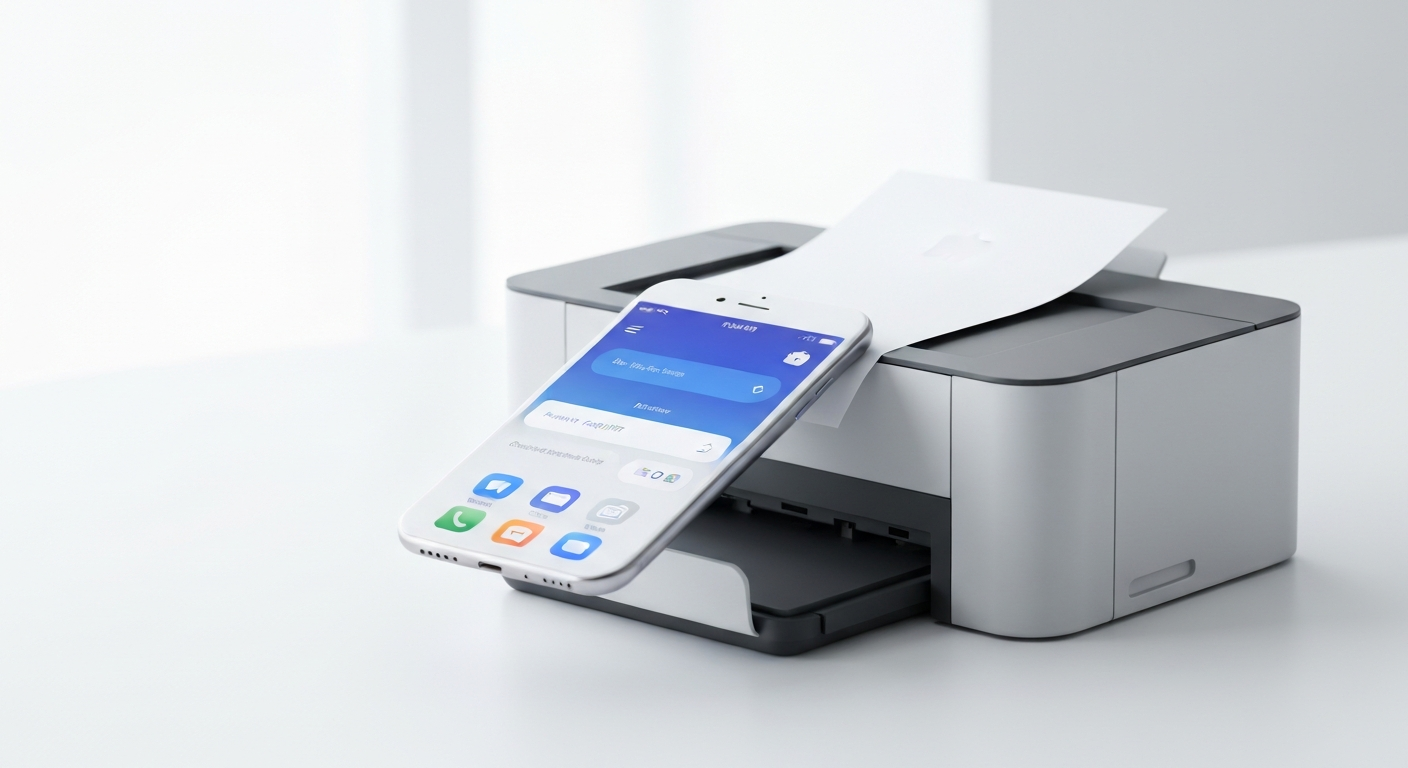
Brother is one of the more straightforward brands for iPhone printing. If your Brother printer has Wi-Fi, it probably supports AirPrint. That is not marketing spin — Brother has included AirPrint on the majority of its wireless consumer and office printers for well over a decade, and the company does not gate the feature behind a paid app or subscription. Connect the printer to your network, open a document on your iPhone, tap Share, tap Print, and your Brother model should appear.
This guide lists which Brother printer families include AirPrint, how to verify your specific model, how to print from iPhone and iPad, and what to do when the printer does not show up. For the general printing workflow, see our print from iPhone guide. For the full cross-brand compatibility picture, see our AirPrint compatible printers list.
How Brother Implements AirPrint
AirPrint is Apple’s wireless printing protocol. It lets iPhones, iPads, and Macs discover printers on the local Wi-Fi network and send print jobs without installing drivers. Brother builds AirPrint support into the firmware of compatible models — it is not a downloadable add-on or a setting you enable through a third-party service.
Brother also offers its own mobile app — iPrint&Scan, now transitioning to Brother Mobile Connect — which adds scanning, status monitoring, and cloud features on top of basic printing. But AirPrint works independently of that app. If you only need to print a PDF from Mail or a photo from the Photos app, the built-in iOS print dialog handles it.
One practical note: Brother printers occasionally ship with AirPrint disabled in the network settings menu. If your printer is on Wi-Fi but does not appear on your iPhone, check the printer’s control panel under Network → Network Settings → AirPrint and confirm it is turned on. This is rare but worth checking before deeper troubleshooting.
Brother Printer Lines That Support AirPrint
Brother organizes its printers into several product families. Here is how AirPrint support breaks down across them.
HL Series Laser Printers
Brother’s HL line is popular for home offices and small businesses that print mostly text documents. Most Wi-Fi-equipped HL models include AirPrint.
Commonly AirPrint-compatible HL models:
- HL-L2300D, HL-L2320D, HL-L2340DW, HL-L2350DW
- HL-L2370DW/XL, HL-L2390DW, HL-L2395DW
- HL-L2400D, HL-L2405W, HL-L2460DW
- HL-L3270CDW, HL-L3290CDW (color laser)
- HL-L8360CDW, HL-L9310CDW (higher-volume color laser)
USB-only HL models without wireless — like some HL-L2300D configurations sold without the W suffix — do not support AirPrint because they lack Wi-Fi entirely. The “DW” and “W” suffixes generally indicate wireless capability.
MFC Series Multifunction Printers
MFC models print, scan, and copy. They are Brother’s all-in-one lineup for both inkjet and laser.
MFC-J inkjet models (commonly AirPrint-compatible):
- MFC-J1010DW, MFC-J1170DW, MFC-J1205W
- MFC-J4335DW, MFC-J4535DW, MFC-J5855DW
- MFC-J6555DW, MFC-J6955DW, MFC-J995DW (older but still common)
MFC-L laser models (commonly AirPrint-compatible):
- MFC-L2690DW, MFC-L2710DW, MFC-L2750DW, MFC-L2770DW
- MFC-L3710CDW, MFC-L3750CDW, MFC-L3770CDW
- MFC-L8900CDW, MFC-L9570CDW (office-class)
MFC printers are a strong choice for iPhone users who also need scanning. Print through AirPrint, scan through Brother iPrint&Scan or Mobile Connect.
DCP Series Printers
DCP models are print-and-copy devices without a fax component. They are essentially MFC printers minus the fax hardware, and AirPrint support follows the same pattern.
Commonly compatible DCP models:
- DCP-L2550DW, DCP-L5500DN, DCP-L5650DN
- DCP-J1000DW, DCP-J1140DW, DCP-J1200W
HL-L and Compact Home Office Models
Brother’s newer compact laser printers for home offices — the HL-L2400 series and similar — include AirPrint alongside Wi-Fi Direct. These are strong options if you print documents from your iPhone regularly and do not need color output.
Brother Printers That May Not Support AirPrint
Not every Brother printer works with AirPrint. Watch for these exceptions.
USB-only models without any wireless connectivity cannot use AirPrint regardless of age or price. If the printer connects to your computer only through a USB cable and has no Wi-Fi indicator light, it is not AirPrint compatible.
Very old Brother models sold before 2011 may have Wi-Fi but lack AirPrint firmware. The MFC-7460DN and similar legacy office models are examples where wireless printing exists through Brother’s proprietary protocols but AirPrint was never added.
Some label and specialty printers — Brother QL label printers and TD receipt printers — use separate apps and protocols. They are not AirPrint devices. If you need label printing from your phone, that is a different category entirely.
Budget models with stripped features. Brother occasionally sells a lower-cost variant in a product line that omits Wi-Fi to hit a price point. Check the exact model suffix — a non-wireless variant in the same series will not support AirPrint.
When in doubt, look up your exact model number on Brother’s support site or in our searchable AirPrint printer database.
How to Check Your Brother Model
Before buying a Brother printer or troubleshooting one you already own, verify AirPrint for the specific model number on the label or box — not the product series name.
Read the box or quick setup guide. AirPrint-compatible Brother printers display the AirPrint logo on packaging.
Check Brother’s product page. Search for your model on brother-usa.com or your regional Brother site. The specifications section lists supported mobile printing protocols including AirPrint.
Search our AirPrint database. Visit the AirPrint printer search page and enter your Brother model number for a quick compatibility check across thousands of models.
Print a network configuration report. On most Brother printers, press Menu → Print Reports → Network Config. The printed page lists enabled protocols. Look for AirPrint in the list.
Test from your iPhone. The fastest real-world test: connect the printer to Wi-Fi, connect your iPhone to the same network, open Safari, tap Share → Print. If the Brother printer appears, AirPrint works.
Printing From iPhone to a Brother Printer
Once you confirm AirPrint support, printing follows the standard iOS workflow.
Connect your Brother printer to Wi-Fi. Use the printer’s menu under Network → WLAN → Setup Wizard, or use the Brother iPrint&Scan app to guide setup. Both devices must share the same network.
Open the content you want to print — a PDF in Files, a webpage in Safari, a photo in Photos, an email in Mail.
Tap the Share button, then tap Print.
Select your Brother printer from the list. Adjust copies, page range, double-sided, or color settings as needed.
Tap Print in the upper right corner.
That is the complete process. No Brother account, no app download, no cable. For a deeper walkthrough of printing from different apps, see our print from iPhone guide.
If you print from iPad as well, the steps are identical. Our print from iPad guide covers any tablet-specific details.
Brother iPrint&Scan and Mobile Connect
Brother’s own app adds features beyond what AirPrint provides. It is not required for printing, but it is worth knowing about.
Mobile scanning lets you scan documents from your Brother MFC or DCP printer directly to your iPhone. AirPrint handles output only — scanning requires the Brother app.
Printer status shows ink or toner levels, paper status, and error messages on your phone screen.
Cloud services connect to Google Drive, Dropbox, Evernote, and OneDrive for saving scans or printing cloud-stored files.
Firmware updates can be pushed through the app on some models.
Brother is transitioning branding from iPrint&Scan to Brother Mobile Connect. Both apps serve the same purpose during the transition. We cover the app in detail in our Brother iPrint&Scan guide.
For a comparison of when manufacturer apps help versus when the built-in AirPrint dialog is enough, see our best printer apps roundup.
Using Smart Printer With Brother AirPrint Printers
Smart Printer is a third-party iOS app that works with AirPrint-compatible printers, including Brother models. It is not made by Brother and not affiliated with any printer brand. It connects to your Brother printer over the same AirPrint protocol that iOS uses in the Share menu.
Where Smart Printer adds value is workflow — a document library, built-in scanning, and a unified interface for importing and printing files from one place rather than jumping between Mail, Files, and Photos. If you print from your iPhone to a Brother printer several times a week, the organizational features can save time. If you print occasionally, the built-in Share → Print method is simpler and requires no download.
Smart Printer does not unlock features your Brother printer lacks. It does not add AirPrint to non-compatible models or bypass Brother’s firmware limitations.
Troubleshooting Brother AirPrint Issues
When your Brother printer does not appear on your iPhone, work through these fixes.
Same network check. iPhone and printer must be on the same Wi-Fi network. Guest networks and device isolation settings on your router can block discovery even when both devices appear connected.
Restart the printer. Power it off, wait 30 seconds, power on, and wait for the Wi-Fi indicator to stabilize before trying again.
Confirm AirPrint is enabled. On the printer’s control panel, navigate to Network settings and verify AirPrint is on. Some firmware versions disable it by default.
Update firmware. Brother releases firmware updates that fix AirPrint discovery issues. Check brother-usa.com for your model or use the Brother app to check for updates.
Router settings. Multicast and Bonjour traffic must be allowed on your network. Some corporate and school networks block the discovery protocol AirPrint relies on. Home routers rarely cause this problem, but guest network isolation does.
Re-run wireless setup. If you recently changed routers or renamed your Wi-Fi network, the printer may still be trying to connect to the old network. Run the WLAN Setup Wizard again.
For a complete diagnostic sequence that covers network issues beyond Brother-specific settings, see our AirPrint not working guide.
Choosing a Brother Printer for iPhone Printing
If you are shopping for a Brother printer specifically for mobile printing from iPhone or iPad, prioritize these features.
Built-in Wi-Fi with AirPrint — confirm on the spec sheet, not assumed from the product line.
MFC or DCP if you need scanning — the multifunction models pair AirPrint printing with app-based scanning.
Laser (HL or MFC-L) for document-heavy use — faster text printing, lower per-page cost for black-and-white output.
Inkjet (MFC-J) for occasional color — better photo and color document quality, with the tradeoff of ink drying if you print infrequently.
Current model over discontinued — firmware support and AirPrint reliability improve on actively sold models.
Brother’s strength for iPhone users is consistency. Unlike some brands that reserve AirPrint for mid-range and higher models, Brother includes it across most of its wireless lineup. Verify your model number, connect to Wi-Fi, and printing from your phone works the way Apple designed it — simply, without extra software.