
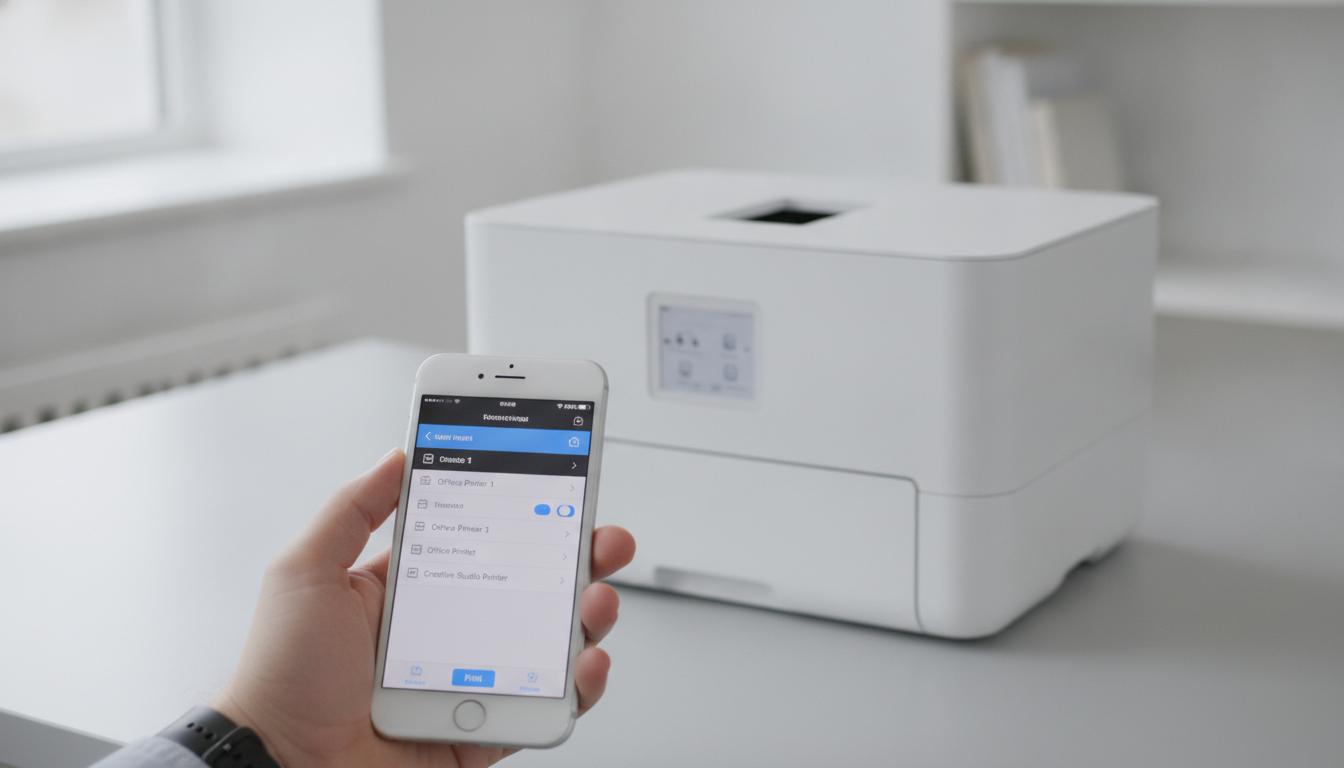
“Samsung AirPrint” gets searched as if AirPrint were a Samsung product. It is not. AirPrint is Apple’s way for an iPhone, iPad, or Mac to discover a printer on the local network and send a job without a driver. Samsung either built that into a given model or it did not. The rest of this guide is how to tell which case you are in, and what to do in each one.
If you want the protocol itself, read what AirPrint is. If the printer should be compatible and still hides, use AirPrint not working. The iPhone steps below assume you already know the model number. It is on a sticker inside the front door or on the back panel, not only the word Samsung on the top cover.
Check the model before you change any settings
Write down the full model, for example SL-M2835DW or C460FW. Search Samsung’s support page for that string plus AirPrint. A marketing line that says “mobile printing” is not the same thing. Samsung has used that phrase for its own app, for Google Cloud Print (which Google shut down), and for AirPrint. Only an AirPrint badge, or a support article that names AirPrint for that model, counts.
Three outcomes:
| What the spec says | What your iPhone can do |
|---|---|
| AirPrint listed | Print from the share sheet once the phone and printer share a normal Wi-Fi network |
| Mobile printing, no AirPrint | Use Samsung’s app if it still supports the model, or print from a computer |
| No mobile printing | Use a USB or network driver on a Mac or PC |
Do not buy a “driver app” from a random developer to force AirPrint. If the printer firmware does not advertise the service, the phone has nothing to find.
Put the phone and the printer on one network
AirPrint discovery is local. The iPhone and the printer must be on the same Wi-Fi, and that Wi-Fi must allow devices to see each other.
- Avoid guest networks. Many routers isolate guests so a phone cannot see a printer.
- Avoid printing from cellular data. There is no route from LTE to your living-room printer unless you set up a VPN on purpose, and that usually breaks discovery anyway.
- 2.4 GHz and 5 GHz under one network name are fine. Two different names are not.
- If the printer is on Ethernet and the phone is on Wi-Fi, they still need to be the same LAN. A printer plugged into a second router, or into an ISP gateway while the phone is on a mesh node in AP-isolation mode, will not show up.
On the printer, open the network or wireless menu and confirm the IP address is in the same range as the phone (often 192.168.1.x or 10.0.0.x). If the printer shows 169.254.x.x, it never joined Wi-Fi. Re-run wireless setup from the printer panel or from a computer. The iPhone cannot fix a printer that is not on the network.
Some Samsung models have an AirPrint or Bonjour toggle in the embedded web page. Type the printer IP into a browser on the same network, open network settings, and make sure AirPrint is enabled. A firmware default or a previous owner’s lockdown can leave it off.
Print from the iPhone once AirPrint is real
Open the document in Files, Mail, or Safari. Tap Share, then Print. Wait a few seconds on the printer row. A supported Samsung appears by the name you set on the device, which is often a long model string. Select it, set copies and range, and print.
Photos follow the same sheet from the Photos app. Borderless and photo paper depend on the tray and the driver options the printer exposes. If the sheet only offers A4 and Letter, the model may not advertise photo sizes over AirPrint even though the computer driver does. That is a limitation of what Samsung published over AirPrint, not a bug in iOS.
Smart Printer is useful when you want a clearer path for documents and photos on an iPhone, including preview and printer choice, but it still requires a printer the system can already see. If Samsung is missing from the system Print button, it will be missing there too. Fix discovery first. The steps in print from iPhone are the same sequence for HP, Canon, Epson, Brother, and a Samsung that truly supports AirPrint.
When the printer never appears
Work in this order so you do not reinstall iOS for a model that cannot do the job.
- Confirm AirPrint on the spec sheet. If it is absent, stop. Use Samsung Mobile Print only if Samsung still lists your model, or print from a computer.
- Print a network configuration page from the printer menu. You need the IP and the Wi-Fi status.
- Join the phone to that same network. Forget and rejoin if you recently changed the password.
- Toggle Wi-Fi on the phone. AirPrint’s browse cache goes stale.
- Restart the printer. Bonjour advertisements die after sleep bugs and come back after a reboot.
- In the printer’s web page, enable AirPrint if a toggle exists, and turn off Wi-Fi Direct isolation if you were trying to print while the phone was on the printer’s own temporary hotspot and the document was in iCloud. A hotspot prints only what the phone already has locally, and many people mix that up with home Wi-Fi.
- Update printer firmware from Samsung’s support site using a computer if the model is listed as AirPrint-capable and still silent. Then test again.
If a Mac on the same network sees the printer and the iPhone does not, the printer is fine and the phone’s network path is not. VPN, iCloud Private Relay in rare cases, and a second SIM’s data path are the things to turn off for a test.
Samsung app versus AirPrint
Samsung Mobile Print can still matter for scanning, for toner status, and for models without AirPrint. It is a different channel. Jobs you start inside that app do not go through the iOS print dialog. Jobs you start from Share → Print do not go through Samsung’s app. Pick one path and judge it on its own.
For a household that already has an AirPrint-capable Samsung, you can ignore the Samsung app for everyday documents. For scanning to the phone, the Samsung app or the printer’s email-to-scan feature may still be the one that works. AirPrint’s scan support is uneven across brands. Do not assume a print success means the scanner appears in Files.
A practical rule
Treat “Samsung” as the manufacturer and AirPrint as a yes-or-no line on that model’s spec. If the line is yes, same-network discovery plus the iOS print sheet is the whole setup, and Smart Printer can sit on top of it for documents and photos. If the line is no, no iPhone app adds the missing protocol. Use the computer driver or replace the printer with a model that lists AirPrint if phone printing is the requirement.
One last check after a successful test: print the same one-page PDF again after the printer has slept for ten minutes. Some Samsung models drop off Bonjour until the panel wakes. If the second job needs a power button press first, that is normal for that firmware, and it is still AirPrint. It is not a reason to install a second driver app.