
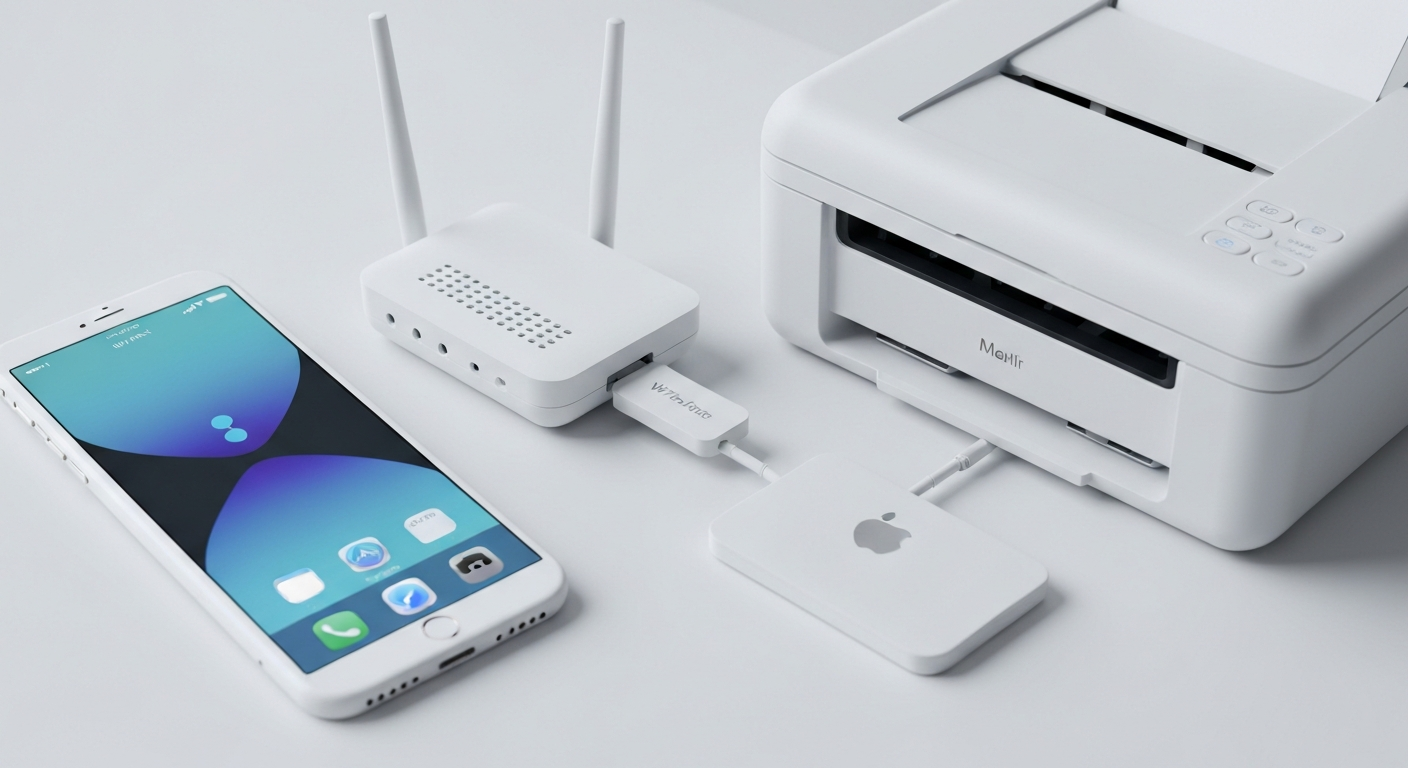
You bought a printer, you have an iPhone, and you expect them to talk to each other. Reasonable expectation — but “connecting a printer to your iPhone” does not work the way Bluetooth headphones do. There is no pairing screen, no device list in Settings, and no cable to plug in. Instead, your iPhone finds printers through AirPrint, Apple’s wireless printing protocol, as long as both devices share the same Wi-Fi network.
This guide explains exactly how that connection happens, what to do step by step with a new or existing printer, and how to fix the most common problems when your phone cannot see the printer at all. Once you are connected, head to our complete guide on printing from iPhone for the actual print steps.
How iPhone Printer Connection Actually Works
Before walking through setup, it helps to understand what “connected” means in this context.
Your iPhone does not maintain a persistent link to your printer the way it does with a paired Apple Watch or AirPods. Every time you tap Print, your phone scans the local network for AirPrint-compatible printers, lists whatever responds, and sends the job. No ongoing bond, no stored PIN, no account login.
That means the connection depends entirely on network conditions at the moment you print. Both devices must be on the same Wi-Fi network, the printer must be awake, and the printer must support AirPrint. If any of those conditions fail, your iPhone shows an empty printer list — which is the problem most people are trying to solve when they search for how to connect a printer to their iPhone.
This is different from installing a printer on a computer, where you download a driver once and the connection persists. On iPhone, the “driver” is built into iOS, and the “connection” is really just shared Wi-Fi plus AirPrint compatibility.
What You Need
Gather these before you start:
- A Wi-Fi printer that supports AirPrint. Check our AirPrint compatible printers list if you are not sure about your model.
- Your Wi-Fi network name and password.
- Your iPhone connected to that same Wi-Fi network (Settings → Wi-Fi).
- The printer plugged in, powered on, and within range of your router.
If your printer is still in the box or has never been connected to Wi-Fi, you will need to complete the printer’s own network setup first. Our Wi-Fi printer setup guide covers that process for most brands.
Step 1: Connect Your Printer to Wi-Fi
Your printer must join your home or office wireless network before your iPhone can find it. The exact steps vary by brand, but the general flow is the same.
Using the printer’s control panel: On the printer’s screen, navigate to Network Settings or Wireless Setup. Select your Wi-Fi network from the list, enter the password, and wait for a confirmation message. Many printers print a network configuration page you can check for the assigned IP address.
Using a manufacturer app: HP Smart, Canon PRINT, Epson Smart Panel, and Brother iPrint&Scan can walk you through Wi-Fi setup from your phone. Download the app for your brand, follow the prompts to connect the printer to your network, and the app handles the technical details. This is one of the few cases where a manufacturer app helps with connection — not with everyday printing.
Using WPS (Wi-Fi Protected Setup): If your router has a WPS button, press it, then press the WPS button on your printer (or select WPS from the printer menu) within two minutes. The devices pair automatically. WPS is convenient but less secure than entering a password manually, so skip it if your router is in a shared building.
After setup, print a test page from the printer’s menu to confirm it is online and connected.
Step 2: Connect Your iPhone to the Same Network
Open Settings on your iPhone, tap Wi-Fi, and select the same network your printer uses. If you are on a guest network, a mobile hotspot, or cellular data, AirPrint will not work — your phone and printer must be on the same local network.
This sounds obvious, but it is the single most common reason people think their printer is not connected. Guest networks, mesh Wi-Fi systems with separate band names, and VPN apps can all put your phone on a different network segment than your printer. Disable any active VPN before testing.
Step 3: Verify the Connection
Once both devices are on the same network, test whether your iPhone sees the printer.
Open any app with a print option — Safari works well. Tap the Share button, then Print. Wait a few seconds. If your printer appears in the printer selection row at the top of the print preview, the connection is working. You do not need to do anything else.
If the printer shows up, tap it, then tap Print to send a test page. Success means you are fully connected. Move on to our print from iPhone guide for everyday printing workflows.
If no printers appear, continue to the troubleshooting section below.
Connecting a New Printer vs. an Existing One
New printer, first-time setup: Follow Step 1 carefully. Most new printers include a quick-start card with Wi-Fi setup instructions. Take the time to connect the printer to Wi-Fi before trying to print from your phone — the iPhone cannot help with initial network configuration on its own.
Existing printer that used to work: Something changed. The most likely culprits are a new router, a changed Wi-Fi password, the printer going offline after a power outage, or a firmware update that reset network settings. Reconnect the printer to Wi-Fi using the same methods in Step 1. If the printer connects to the network but your iPhone still cannot see it, the issue may be AirPrint-specific — see our AirPrint not working guide.
Printer shared from a computer: Some people share a USB printer from a Mac or PC on the network. Your iPhone may detect it if the computer is on and sharing is configured correctly, but this setup is less reliable than a printer with native AirPrint and Wi-Fi. If you depend on this method, expect occasional dropouts when the computer sleeps.
Using an App to Help With Connection
You do not need an app to connect an AirPrint printer to your iPhone. Once the printer is on Wi-Fi, the built-in print dialog handles discovery automatically.
That said, some apps make the overall experience smoother — especially if you print often or want scanning alongside printing. Smart Printer connects to AirPrint-compatible printers on your network and gives you a unified place to import documents, scan with your iPhone camera, and send print jobs. It uses the same AirPrint protocol as the built-in Share menu; it does not bypass AirPrint or connect to printers that lack it. Think of it as a better front door to the same connection you already have.
Manufacturer apps serve a different purpose during setup. HP Smart, for example, can push Wi-Fi credentials to an HP printer during initial configuration. After that, you may never open the app again for basic printing. Our best printer apps roundup compares when each type of app is worth installing.
Troubleshooting Connection Problems
When your iPhone cannot find your printer, work through these fixes in order.
Restart everything. Turn the printer off, unplug it for thirty seconds, plug it back in, and wait for it to fully boot. Restart your iPhone. Try the print dialog again. This alone fixes a surprising number of issues.
Confirm the network. On your iPhone, go to Settings → Wi-Fi and note the network name. On the printer, print a network status page and compare. They must match exactly — “HomeNetwork” and “HomeNetwork-5G” are different networks on many routers.
Check printer status. Look at the printer’s display or indicator lights. “Offline,” “Not Connected,” or a blinking wireless icon means the printer lost its Wi-Fi connection. Reconnect it using Step 1.
Move closer to the router. If the printer is in a far room or behind thick walls, it may connect to Wi-Fi intermittently. AirPrint discovery fails when the printer drops off the network, even briefly.
Disable network isolation. Some routers have an “AP isolation” or “guest network isolation” setting that prevents devices on the same network from seeing each other. If your printer is on a guest network or this setting is enabled, AirPrint discovery is blocked. Connect both devices to the main network instead.
Update printer firmware. Outdated firmware can break AirPrint compatibility after iOS updates. Check the manufacturer’s website or app for firmware updates.
For deeper diagnostics, our dedicated guides cover printer not found errors and printer won’t connect scenarios with brand-specific notes.
Printers That Cannot Connect to iPhone
Not every printer can connect to an iPhone, and it is worth being direct about this.
Printers without Wi-Fi cannot connect wirelessly — full stop. Printers with Wi-Fi but without AirPrint support are harder to use from an iPhone. Some manufacturer apps provide a workaround by routing print jobs through a cloud service, but that is not the same as a native AirPrint connection and often requires keeping a computer on.
If you are shopping for a printer specifically to use with your iPhone, verify AirPrint support before buying. Our AirPrint compatible printers guide lists what to look for, and the brand-specific pages for HP, Canon, Brother, and Epson narrow it further.
Keeping the Connection Stable
Once your printer and iPhone are connected, a few habits prevent future dropouts.
Leave the printer connected to power. Putting a printer in deep sleep or unplugging it between uses means it may not respond when your iPhone scans the network. Most modern printers draw minimal power in standby.
Avoid changing your Wi-Fi password without reconnecting the printer. This is the number one cause of “it stopped working” complaints. If you change router settings, repeat the Wi-Fi setup on the printer.
Keep firmware current. Set a reminder to check for printer firmware updates every few months, especially after major iOS releases.
If you use a mesh Wi-Fi system, make sure the printer connects to the main router or a node that supports multicast traffic. Some mesh nodes block the discovery protocol AirPrint relies on. Placing the printer within range of the primary router usually resolves this.
What About iPad and Other Apple Devices?
The connection process is identical for iPad — same AirPrint, same Wi-Fi requirement, same troubleshooting steps. An iPad on the same network will see the same printers your iPhone does. See our print from iPad guide for device-specific tips.
If you also need to print from Android, the process differs because Android uses different print protocols. Our connect printer to phone guide covers both platforms.
The Bottom Line
Connecting a printer to your iPhone is really two jobs: get the printer on Wi-Fi, and confirm it supports AirPrint. There is no pairing ritual, no special cable, and no permanent setup screen on your phone. Once both devices share a network and the printer responds to AirPrint discovery, you are connected — and you can print from any app using the Share menu.
If you are stuck, the problem is almost always the network, not your iPhone. Work through the troubleshooting steps above, and use Smart Printer or your manufacturer’s setup app if you want a guided experience. When everything is working, our print from iPhone guide shows you how to make the most of the connection.