
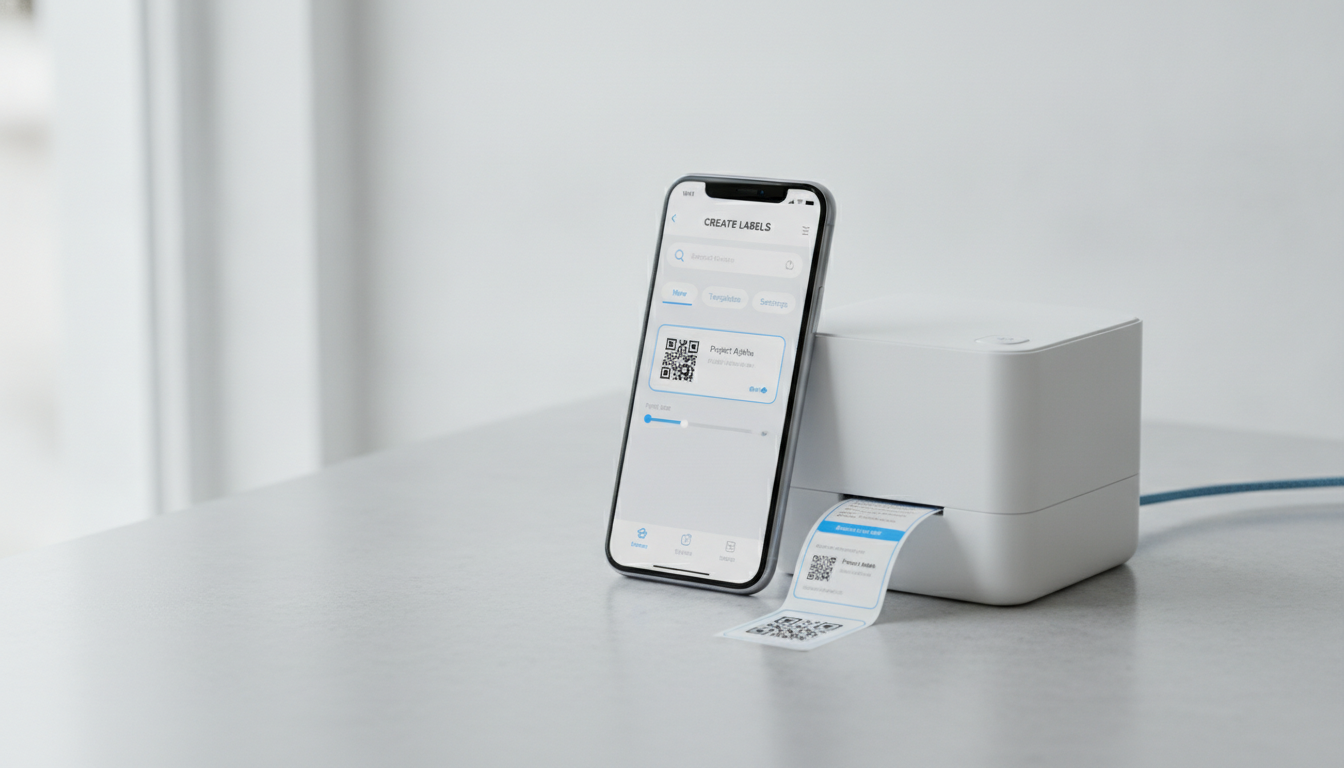
People land on this page after a document-printer article disappointed them. They installed a print app, tapped Print, and the little labeler on the shelf did not appear. That is not a bug in the app. A label printer is a different machine: different paper, different connection, different software. The best printer apps on this site are for AirPrint inkjets and lasers. Labelers almost never speak AirPrint.
This guide covers the label printer apps that actually work from a phone in 2026, how to choose among them, and why a general iOS print app cannot replace the manufacturer’s client. For the connection type most of these devices use, see our Bluetooth printing guide. For ordinary documents on a normal printer, stay with print from phone.
Why Label Printers Need Their Own Apps
Document printers take A4 or Letter paper and, if they are recent, advertise themselves through AirPrint or Android’s print service. Your phone already knows how to talk to them.
Label printers do not play that game.
The media is wrong for AirPrint. A 2-inch shipping label, a 12 mm TZe tape, or a continuous thermal roll is not a page size iOS offers in Share → Print. The app has to know the stock you loaded, the darkness, and whether the cutter should fire.
The connection is usually Bluetooth. Portable and desktop labelers pair like headphones. There is no router in the middle and no AirPrint beacon. Our Bluetooth printing guide is blunt about this: standard HP and Canon all-in-ones do not do Bluetooth; labelers often do nothing else.
The language is proprietary. Zebra has ZPL. Many cheap thermal labelers have their own command set. The manufacturer’s app (or a properly written third-party that implements that language) is the translator. A generic PDF sender has nothing to say.
So the “best label printer app” is not a ranking of one universal winner. It is a map from hardware to client.
The Apps That Matter
Dymo Connect (Dymo LabelWriter and some LabelManager)
Dymo Connect is Dymo’s current phone and tablet app for LabelWriter desktop printers and selected LabelManager handhelds. You design a label — address, barcode, simple text — pick the installed label size, and send it over USB (computer), Wi-Fi (a few models), or Bluetooth (newer portable units).
Use it if you own Dymo. Shipping and file-folder labels on a LabelWriter are still the most common desk job in this category. The app is free. Templates cover addresses and barcodes; they are not a full design suite.
Limits. Older LabelWriter models that only spoke USB will not appear on an iPhone at all. Confirm Bluetooth or Wi-Fi on the spec sheet before you assume phone printing works. Dymo has retired older app names; if a search still shows “Dymo Label” or “Dymo Print,” prefer Connect.
Brother iPrint&Label (P-touch and QL)
Brother splits its mobile story. Brother iPrint&Scan / Mobile Connect is for inkjet and laser document printers — covered in our Brother iPrint&Scan guide. iPrint&Label is the separate app for P-touch tape printers and QL label printers.
Use it if you own a P-touch or QL. The app handles tape width, template layouts, and Bluetooth or Wi-Fi pairing depending on the model. QL-800-class desktop units are common for shipping; P-touch handhelds are common for cable and asset labels.
Limits. Installing iPrint&Scan will not drive a P-touch. Installing iPrint&Label will not drive an MFC laser. Brother’s store listings look similar. Read the subtitle.
Zebra (Setup Utilities, Zebra Printer Setup, and industry apps)
Zebra owns the warehouse and retail end of labeling — ZD desktop printers, QLn and ZQ mobile printers, and a long tail of older models. The consumer-friendly “one app” story does not apply. Zebra ships setup utilities, printer-setup apps, and vertical apps (retail, healthcare) that assume you already know the model.
Use Zebra’s own tools if you own Zebra hardware. Pairing is often Bluetooth or WLAN configured by an admin. Some Zebra devices can take AirPrint or IPP in an office build, but that is a deployment choice, not the default on a new ZD421.
Limits. Expect documentation written for technicians. If you bought a used Zebra from a closing shop, confirm the model still has a maintained iOS or Android app before you count on phone printing.
Niimbot
Niimbot (D11, D110, B21, and similar) is the small portable thermal labeler you see in kitchens, craft rooms, and small warehouses. The Niimbot app is the only supported client. Pair over Bluetooth, pick a label size, type the text, print.
Use it if you own a Niimbot. The app is free and does the job. Templates are simple: text, icons, basic barcodes.
Limits. The printer will not show up in iOS Share → Print. It will not speak to Dymo or Brother apps. Firmware and app updates matter; an abandoned Niimbot clone from a marketplace seller may die when the matching APK disappears.
Phomemo
Phomemo occupies the same shelf as Niimbot — compact thermal label and some photo-label devices, Bluetooth, brand app required. The Phomemo app handles pairing, templates, and paper type.
Use it if you own a Phomemo. Same rule as Niimbot: one hardware family, one app.
Limits. Cross-compatibility with Niimbot stock or apps is not something to bet a workflow on, even when the plastic looks similar.
Other names you will see
Rollo, Munbyn, and similar shipping-label desktops often expect a computer or a specific mobile app listed on the box. Some newer Wi-Fi units can take a PDF; many still want their own client.
Epson label and colorworks devices in retail have Epson’s own mobile tools. They are not Epson Smart Panel, which is for EcoTank document printers — see our Epson Smart Panel guide.
Generic “label printer” apps in the App Store that promise every brand. Treat those as last resorts. A labeler that needs a precise command sequence will fail silently or print garbage if the app guessed wrong.
How to Choose — Hardware First
The decision tree is shorter than the app list.
You already own a labeler. Install that brand’s current app. Stop searching for a universal client. There is not a good one.
You are buying for shipping labels on a desk. Dymo LabelWriter or Brother QL, current generation, with Bluetooth or Wi-Fi called out on the box. Confirm the iOS or Android app was updated in the last year.
You are buying for small adhesive labels you carry. Niimbot or Phomemo, current model, official app only.
You are buying for a warehouse or shop floor. Zebra, deployed the way your IT or integrator specifies. Do not pick this family because the App Store screenshot looked simple.
You wanted one app for labels and documents. Buy an AirPrint document printer for PDFs and photos, and a separate labeler with its own app. Combining those jobs in one cheap device usually means both jobs are bad.
Setup That Actually Works
The failure mode is almost always pairing, not design.
Bluetooth models. Turn the labeler on. Put it in pair mode — a button hold or a menu item, not just power. On iPhone, open Settings → Bluetooth and confirm the device appears, then finish pairing inside the brand app. iOS needs Bluetooth permission and, on recent versions, local-network or nearby-device permission. If the printer is already paired to a colleague’s phone, unpair there first. Bluetooth is one dance partner at a time on most of these devices.
Wi-Fi models. Phone and printer on the same SSID, not a guest network. Then add the printer in the brand app. AirPrint will still usually be absent; the app is still required for label stock and darkness.
First label. Print the app’s test or a single-word label before you design a 40-field template. If the test fails, the template will not save you.
When Bluetooth misbehaves, the checklist in our Bluetooth printing guide applies: pairing mode, distance, one connection, forget-and-re-pair.
What a Document Print App Cannot Do Here
This site exists because Smart Printer is a strong AirPrint app for iPhone — documents, photos, camera scans, paper size and duplex on any AirPrint printer. That is a different problem than labeling.
Smart Printer will not appear as a Dymo, Niimbot, Phomemo, or P-touch driver. It cannot set tape width or thermal darkness for those machines. Installing it will not make a Bluetooth labeler show up in iOS’s print sheet.
Use Smart Printer when the job is a PDF, a photo, or a scan going to an AirPrint inkjet or laser. Use the labeler’s own app when the job is a label. If your day includes both, you will have both apps, and that is the correct setup rather than a compromise.
Common Problems
App cannot find the printer. Pairing mode, distance, leftover pairing on another phone, Bluetooth off, permissions denied. Work those five before you reinstall.
Prints blank or faded. Wrong label stock, darkness too low, or the roll loaded upside down. Bluetooth is not the cause of faded thermal output.
Prints garbage characters. You are sending a PDF or a screenshot through an app that expected a template, or you installed a generic client that does not speak the printer’s language. Design the label in the official app.
iOS lost the printer after an update. Forget the device in Bluetooth settings, reboot the labeler, pair again from the official app. Labeler vendors lag iOS releases; check for an app update the same week.
Android pairs but will not print. Nearby-devices permission, location permission (still required for Bluetooth scans on many versions), and battery optimization killing the app. Exempt the brand app from battery restrictions.
You tried Share → Print and nothing listed the labeler. Expected. That sheet is for AirPrint document printers. Open the brand app instead.
The Bottom Line
The best label printer app is the current official app for the labeler you own. Dymo Connect, Brother iPrint&Label, Niimbot, Phomemo, and Zebra’s utilities are not interchangeable, and none of them is a substitute for an AirPrint document app.
If you have not bought hardware yet, pick a model whose phone app is still maintained, then commit to that app. If you already own a labeler and a document printer, keep two apps. Trying to force both jobs through one client is how you end up with a blank roll and a PDF that never left the phone.