
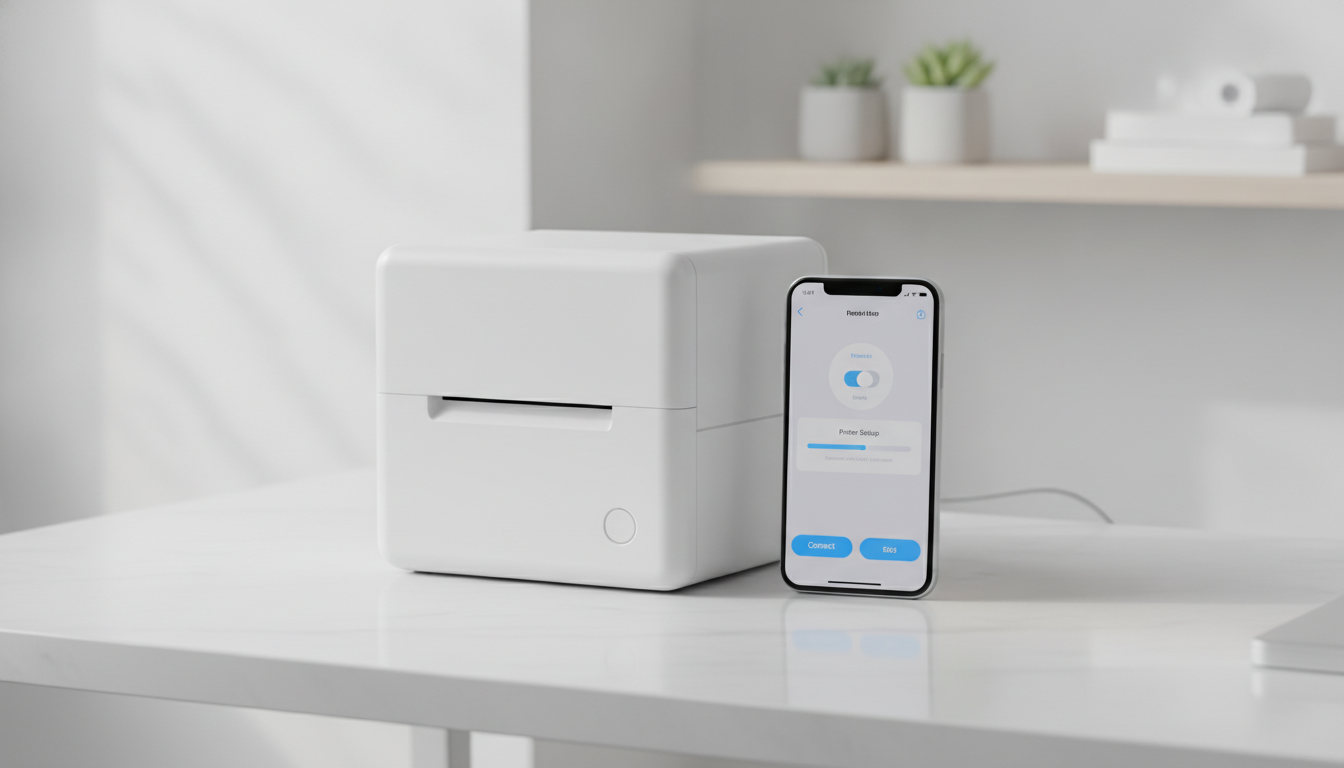
People searching for a Niimbot app are usually holding a small thermal labeler and a phone that will not show it in the iOS print dialog. That is expected. Niimbot and Phomemo built their printers around Bluetooth and a companion app, not around AirPrint. The app is the printer driver, the label designer, and the paper-size list. If you treat it like a document printer, every job looks broken.
This guide is the setup path that actually works: which app to install, how pairing differs from Wi-Fi printing, how to match a roll, and the jobs these printers should not be asked to do. For the wider set of label brands, the label printer apps guide covers Dymo, Brother, and Zebra. For ordinary PDFs, start with print from iPhone.
What these printers are for
Niimbot and Phomemo portable models print on narrow thermal rolls or small sheet labels. Typical jobs are shipping barcodes, pantry labels, cable tags, price stickers, and name badges. The print head heats coated paper. There is no ink cartridge. There is also no Letter-size tray. A recipe PDF, a school worksheet, and a 4x6 photo are the wrong jobs unless you bought one of the few Phomemo models that is explicitly a pocket photo printer with its own paper pack. Those still use the Phomemo app, not the system print sheet.
The useful mental model is a dedicated label tool. You design a small canvas, you set a width in millimeters, and you print one or a short run. You do not open Files, tap Share, and expect the printer name to appear next to an HP.
Install the app that matches the hardware
Read the name on the device before you search the App Store. “Label printer” returns a crowd of clones. Niimbot’s app is published for Niimbot models (B21, B1, D11, and similar). Phomemo’s app covers Phomemo’s M, D, and PM lines, and the feature set changes by model. A tutorial for a Phomemo M110 will mention a different label width than a Niimbot D11.
On iPhone, install the app, then open it before you open Settings → Bluetooth. On Android, install the app and be ready to allow Nearby devices or Location, because Android still uses location permission as part of Bluetooth scanning on many versions. Deny that permission and the scan list stays empty even when the printer is beeping in pair mode.
Skip third-party “universal label” apps on the first day. They add another pairing and another template format. Get one successful print from the brand app, then decide if you want anything else.
Pairing that survives the second day
Put the labeler in pair mode. On most Niimbot and Phomemo portables that is a long press of the power button until a Bluetooth icon blinks, or a dedicated pair button if the model has one. Open the brand app and use its add-printer screen. Do not rely only on the phone’s Bluetooth list. Some models appear in Settings and still refuse jobs until the app completes its own handshake.
If the printer is missing:
- It is already bound to another phone. Forget it there, or power-cycle the labeler so it advertises again.
- The phone is too far, or a case with a metal plate is sitting on the antenna.
- iOS Low Power Mode or a VPN is interfering with the local connection. Turn the VPN off for the test print.
- Android battery optimization killed the app’s scan. Allow unrestricted battery use for the label app.
Bluetooth printing explains the same class of failures for document printers. Labelers fail for the same reasons, with one extra: the app, not the operating system, owns the connection. If you unpair in iOS Settings and leave the app’s saved printer in place, the next job errors with a device that “exists” only inside the app. Remove it in both places.
Match the roll before you design anything
Wrong width is the most common “it prints garbage” report. A 15 mm D11-style roll, a 20–50 mm B21-style roll, and a 2-inch shipping roll are different canvases. The app asks for a label size. Pick the size printed on the roll package, not the size that looks closest.
Thermal paper has a coated face. If the print is invisible, flip the roll. If the print is pale, raise density one step in the app. If the print walks off the edge, run the calibration or press the feed button until the gap sensor finds the next label. Continuous rolls (no gaps) need the app set to continuous, or the printer will hunt for a gap and feed a long blank strip.
Keep a note of the width that worked. The app remembers the last template, and a later roll of a different width will reuse that canvas until you change it.
What to put on the label
For a first success, use one line of text and a border. Then add a barcode or QR only if the app’s preview shows it inside the printable area. Barcode quiet zones matter: a code that touches the edge will not scan at a carrier drop-off. Leave a margin the preview already shows in gray.
Photos on a thermal labeler become dithered black and white. A color logo will not print in color. If the job needs color, it is a document or photo printer job, which is the path in print from iPhone.
Templates in the app store inside Niimbot or Phomemo are convenient and optional. A blank canvas with your own text is enough for cables, bins, and return addresses. Sign in only when you want that library synced.
Jobs these apps should refuse
Do not use a Niimbot or Phomemo as the household printer for:
- Multi-page PDFs, school packets, and boarding passes that must be Letter size
- Borderless color photos
- Double-sided documents
- Anything an office expects on plain paper
Those jobs belong on an AirPrint printer. Smart Printer is built for that case: find an AirPrint printer and send the document or photo. It will not, and should not, pretend to be a Niimbot driver. Mixing the two is how people end up with a labeler that “does not appear” in a print sheet that was never going to list it.
A short setup you can repeat
- Charge the labeler and load the roll coated-side toward the head.
- Install the Niimbot or Phomemo app that matches the brand on the device.
- Pair from inside the app, not only from system Bluetooth.
- Choose the exact roll width.
- Print a one-line test. Adjust density, then print the real label.
- For PDFs and photos, switch to an AirPrint printer and a document app.
If step 5 fails after a correct width, power-cycle the labeler, forget the pairing, and pair once. A second phone still connected is the usual culprit. After one clean test, later labels are a template change, not a new setup.
Keep the roll you tested with. Switching widths later is fine, but do it in the app before you hit print, and run one feed so the sensor finds the new gap. A label that worked yesterday and clips today is almost always a width change, not a dead print head. Wipe the head with a dry lint-free cloth only if streaks stay in the same place across two different rolls.