
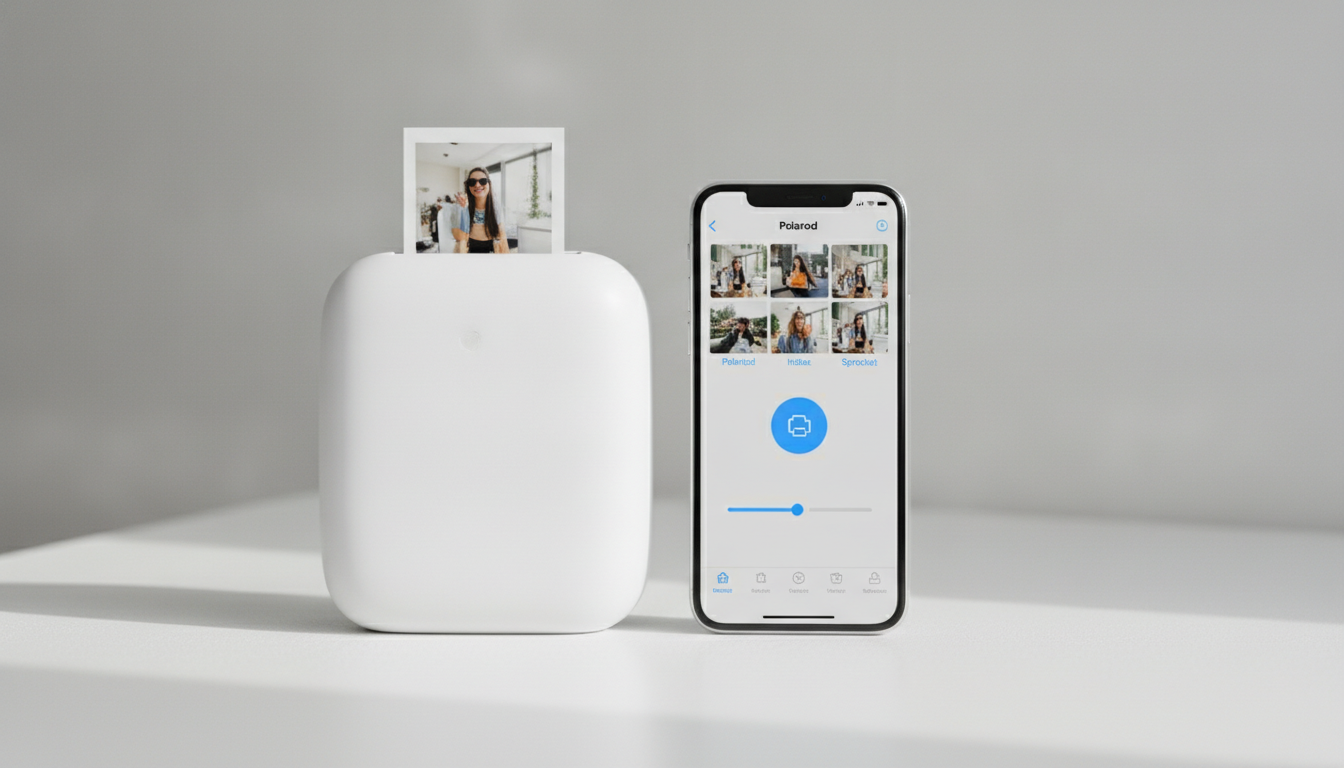
A portable photo printer app is the only software that can drive most pocket printers. The printer is a small color device, often Bluetooth, loaded with a Zink pack or a dye-sublimation cartridge and paper set. iOS does not see it as a normal printer. If you open a picture and tap Print, the pocket printer is not supposed to be in that list. You open the brand app, pick the photo, and print from there.
That split confuses people who already know how to print from an iPhone. This page is the other path: which app, which paper, and which jobs belong on a full-size printer instead.
Two kinds of “portable printer”
The phrase covers different machines. Getting the app right starts with the mechanism.
| Type | What it prints | How the phone connects | Typical app |
|---|---|---|---|
| Zink pocket printer | Color on a sticker-backed pack, often 2x3 inches | Bluetooth, sometimes the printer’s own Wi-Fi | The brand app named on the box |
| Dye-sub mini printer | Color on a small paper pack with a ribbon | Bluetooth or USB | The brand app, sometimes a second “photo booth” app |
| Thermal labeler | Black text and barcodes on a roll | Bluetooth | Niimbot, Phomemo, or another label app |
| Compact inkjet with AirPrint | Real 4x6 or Letter | Home Wi-Fi | No special app required |
The last row is a normal printer that happens to be small. It shows up in the iOS print sheet. The first three do not. Bluetooth printing is the connection style for many of them, but the app still has to know the paper. A generic Bluetooth print utility will not load a Zink pack correctly.
Install one app and ignore the clones
The box, the printer’s About screen, or the model number in the battery bay tells you the brand. Search that name, not “portable photo printer app.” Store search is full of frame apps that only save a picture to your camera roll. Those do not contain a printer driver.
Grant Bluetooth when the app asks. On Android, also allow the nearby-devices or location permission the scan needs. Then add the printer from the app’s own screen while the printer is awake. Pocket printers sleep quickly. If the light is off, wake it before you scan.
Sign-in is optional on most of these apps until you want filters, frames, or a cloud album. Print one unedited photo first. If that works, accounts and packs of templates are a choice, not a requirement.
Paper is the setting that matters
The app’s paper size must match the pack in the printer. A 2x3 Zink sheet is not a 4x6. If the app offers both, pick the pack you loaded. A mismatch clips the photo or feeds a blank sheet and then errors.
Color on these packs is narrower than a phone screen. Deep navy goes muddy. Thin white text on a photo disappears. Crop tight, avoid heavy filters that crush shadows, and print a face or a simple object as the test, not a screenshot of a webpage.
Zink packs are heat-sensitive stickers. Leave them in a cool bag, not on a car dashboard, or the sheets pre-fog pink. Dye-sub ribbons are single-use and counted. The app’s remaining-sheet number is only right if you have not swapped a half-used pack without telling it. If color bars appear, the ribbon and paper are out of step: power off, reseat the pack the way the diagram shows, and waste one calibration sheet if the app offers it.
What the app can edit, and what it should not
Inside the app you can crop, add a date, and sometimes print a strip of two or four. That is the job. Do not use the app as a document printer. A PDF of a lease, a boarding pass, or a school form will be shrunk onto a sticker and become unreadable. Those files go to an AirPrint printer.
Text-only labels belong on a label printer, covered in label printer apps. A photo printer’s app will dither text into a fuzzy black. Barcodes printed that way often fail at scan time.
If you need a 4x6 for a frame, check whether your pocket printer even loads that size. Most do not. A small AirPrint inkjet at home, or a store kiosk, is the honest tool. The pocket printer is for a print you hand to someone in the next minute.
When AirPrint is the right app instead
Use the iPhone print sheet, or Smart Printer, when:
- The printer is an inkjet or laser that lists AirPrint
- The photo should be 4x6, 5x7, or larger
- You are printing several pages
- The file is a PDF or a web page
Smart Printer finds AirPrint printers and sends documents and photos. It does not drive Zink or dye-sub pocket printers, and it should not be installed in the hope that a missing pocket printer will appear. If the brand app cannot see the pocket printer, fix Bluetooth and paper there.
A clean first print
- Charge the printer and load the pack in the orientation printed inside the door.
- Install the brand app. Wake the printer.
- Pair inside the app.
- Choose a well-lit photo, crop it, and print one sheet.
- If color is flat, print a second sheet before you change every filter. The first sheet after a new pack is sometimes the calibration.
- Put documents and large photos on an AirPrint printer.
After that, the app is a camera-roll picker. The failures that remain are almost always a sleeping printer, a mismatched pack, or an expectation that the iOS Print button knows about a device that never spoke AirPrint.
Sharing one pocket printer
These printers remember one or two phones. A second person installs the same brand app and pairs only after the first phone is done, or the printer ignores the new scan. There is no household queue. If you print from two phones in one afternoon, unpair or close the app on the first phone before the second one searches.
Travel is the other limit. A pocket printer does not join hotel Wi-Fi the way an AirPrint inkjet does. It talks to the phone over Bluetooth, so hotel networks do not matter, and airplane mode is fine as long as Bluetooth stays on. What fails on a trip is an empty pack and a phone that still has the app’s last printer marked “connected” when the device is in a bag with a dead battery. Wake the printer, open the app, and connect again. Do not delete the app. The pairing is the only setup you need to repeat.
If the print is a gift people will keep, say so in the crop. These sheets scratch and fade faster than a darkroom or a dye-sub 4x6 from a home inkjet. They are for the moment you hand them over. For a frame on a wall, use an AirPrint photo printer and paper meant to be handled. The pocket app is the right tool when the print is small, immediate, and color, and the wrong tool for everything else you used to send to a desktop printer.