In today’s fast-paced digital world, the ability to manage documents efficiently is no longer a luxury but a necessity. Whether you’re a student needing to submit assignments, a professional handling contracts on the go, or simply someone trying to declutter their home office, the traditional methods of scanning and printing can often feel cumbersome and time-consuming. Imagine a world where your most powerful office tool is already in your pocket: your iPhone. This isn’t a futuristic fantasy; it’s a present-day reality, thanks to innovative applications like the Smart Printer app. This comprehensive guide will delve into how you can effortlessly scan documents with your phone and seamlessly print them, transforming your iPhone into an indispensable mobile office companion.
Gone are the days of needing bulky, expensive scanners or wrestling with complicated software. Your iPhone, equipped with its advanced camera and the right app, is more than capable of handling all your scanning needs with remarkable precision and clarity. But the utility doesn’t stop at scanning. The true power lies in the integration of scanning with immediate, high-quality printing, all from a single, intuitive interface. We’re talking about a complete document workflow solution that fits in your hand, making productivity accessible wherever you are. Get ready to revolutionize the way you interact with physical documents, turning them into digital assets that are easy to store, share, and print.
The Power of Your Pocket: Why Scan Documents with Your Phone?
The concept of using a smartphone as a document scanner has gained immense popularity, and for good reason. The convenience, accessibility, and sheer efficiency it offers are unparalleled compared to traditional scanning methods. Think about it: your iPhone is almost always with you, making it the most readily available scanning device you own. This ubiquitous presence means you can capture important information the moment it arises, preventing delays and ensuring you never miss a beat.
One of the primary advantages of choosing to scan documents with your phone is the immediate digitization of physical paperwork. Receipts from a business lunch, a handwritten note from a meeting, a contract that needs immediate attention, or even pages from a textbook – all can be converted into digital files in mere seconds. This not only saves you time but also helps in creating a more organized, paperless workflow. Digital documents are easier to store, search, and share, drastically reducing physical clutter and the risk of losing important papers. Imagine being able to instantly find that one receipt from months ago with a quick search on your phone, rather than sifting through piles of paper.
Beyond convenience, mobile scanning offers a level of flexibility that traditional scanners simply cannot match. You’re not tied to a desk or a specific location. Whether you’re in a coffee shop, at a client’s office, or traveling abroad, your ability to scan remains unimpeded. This is particularly beneficial for professionals who are constantly on the move, allowing them to capture signatures, archive expenses, or digitize project notes without needing to return to an office. Students can quickly scan lecture notes or library book pages, integrating them into their digital study materials.
Furthermore, modern smartphone cameras are incredibly powerful, boasting high resolutions and sophisticated image processing capabilities. When paired with a dedicated scanning app, these cameras can produce scans that rival, and often surpass, the quality of entry-level flatbed scanners. The apps utilize advanced algorithms to correct perspective, enhance contrast, remove shadows, and sharpen text, ensuring your digital documents are clear, readable, and professional-looking. This means you’re not sacrificing quality for convenience; you’re getting the best of both worlds. The environmental benefit is another compelling reason. By embracing digital documents, you contribute to reducing paper consumption, aligning with eco-friendly practices. It’s a win-win situation for both your productivity and the planet.
Introducing Smart Printer: Your Ultimate Mobile Office Companion
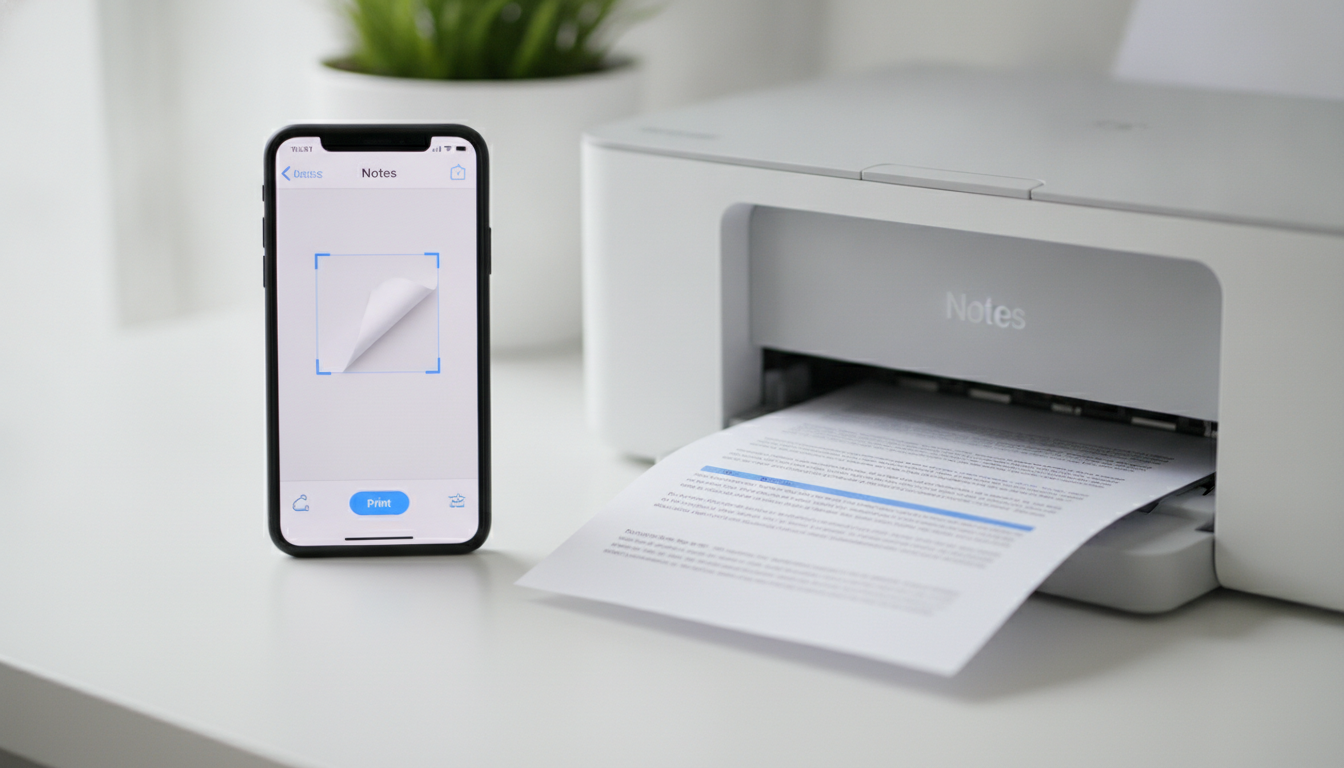
While your iPhone’s camera is a remarkable piece of hardware, turning it into a truly effective document scanner and printer requires the right software. Enter Smart Printer, an innovative iOS app designed to transform your iPhone or iPad into a comprehensive mobile office hub. This isn’t just another camera app; it’s a meticulously crafted tool that empowers you to scan documents with your phone with professional-grade quality and print them effortlessly via AirPrint.
The Smart Printer app is built from the ground up to leverage the full potential of your iPhone’s camera, providing a scanning experience that is both intuitive and incredibly powerful. Its core strength lies in its ability to capture high-quality images of documents, automatically detect their edges, and correct perspective distortions, making even awkwardly taken photos look like they were scanned on a professional flatbed. Imagine holding your phone over a crumpled receipt, and within seconds, having a perfectly rectangular, crisp digital copy ready for archiving or expense reports.
But Smart Printer goes far beyond simple capture. Once a document is scanned, the app offers a suite of powerful editing tools to ensure your digital copies are exactly as you need them. You can easily crop to refine the document boundaries, rotate to correct orientation, and apply various filters to enhance readability. Options like grayscale, black & white, and color filters allow you to optimize the document for different purposes, whether it’s for legal clarity or vibrant presentation. For multi-page documents, Smart Printer shines, allowing you to continuously scan multiple pages and compile them into a single, cohesive PDF file, just as a traditional scanner would. This feature is invaluable for reports, contracts, or entire books.
What truly sets Smart Printer apart is its seamless integration with AirPrint. After you’ve scanned and perfected your document, the app provides a direct, one-tap pathway to printing. AirPrint, Apple’s proprietary technology, simplifies printing by eliminating the need for drivers or complex setup. If you have an AirPrint-enabled printer (and most modern wireless printers are), Smart Printer allows you to send your scanned documents directly to it over Wi-Fi, turning your digital files back into physical copies with unparalleled ease. This complete scan-to-print workflow is what makes Smart Printer a truly indispensable tool for anyone looking to maximize their mobile productivity.
To get started on your journey to a more efficient, mobile-centric workflow, you can download the Smart Printer app directly from the Apple App Store: Smart Printer App: Print & Scan. Experience the future of document management today.
A Step-by-Step Guide to Scan Documents with Your Phone Using Smart Printer
Mastering the art of mobile scanning with Smart Printer is incredibly straightforward. The app is designed with user-friendliness at its core, ensuring that anyone can quickly and effectively scan documents with their phone. Follow these simple steps to digitize your paperwork with professional results:
-
Download and Open the Smart Printer App: First things first, ensure you have the Smart Printer app installed on your iPhone or iPad. If not, head over to the Apple App Store and download it. Once installed, tap the Smart Printer icon to launch the application.
-
Initiate the Scanning Process: Upon opening the app, you’ll typically see a prominent “Scan” button or a camera icon. Tap this to activate the scanner mode. The app will request access to your camera if it’s your first time using it; grant permission to proceed.
-
Position Your Document for Optimal Capture: Lay your document flat on a contrasting surface, ensuring it’s well-lit and free from shadows. Hold your iPhone directly above the document. The Smart Printer app is designed to intelligently detect the edges of the document. You’ll often see a colored frame appear around the document as the app identifies its boundaries. Try to keep your phone steady and the entire document within the frame.
-
Automatic Detection and Capture (or Manual Snap): Many documents will be automatically captured once the app detects stable edges and optimal focus. You’ll see a quick flash or hear a shutter sound indicating the scan has been taken. If automatic capture doesn’t occur or you prefer more control, you can usually tap a manual shutter button within the app to take the picture yourself. The app will then process the image to correct perspective and enhance clarity.
-
Review and Adjust Your Scan: After capture, the app will present you with a preview of your scanned document. This is your chance to fine-tune it:
- Crop: If the automatic edge detection wasn’t perfect, or if you want to exclude certain parts of the background, use the cropping tool. Drag the corners or edges of the frame to precisely define the document’s boundaries.
- Rotate: If your document was scanned at an angle, use the rotate function to orient it correctly.
- Filters: Apply filters to enhance readability. Common options include:
- Grayscale: Ideal for text-heavy documents where color isn’t necessary.
- Black & White: Best for stark contrast, like line drawings or very crisp text.
- Color: Preserves original colors, suitable for photos or documents with color graphics.
- Original: Keeps the raw image as captured.
- Adjust brightness and contrast sliders if available for further refinement.
-
Add More Pages (for Multi-Page Documents): If you’re scanning a multi-page document, look for an “Add Page” or “Continue Scanning” option. Tap this, and repeat steps 3-5 for each subsequent page. Smart Printer will compile all these pages into a single, cohesive document (typically a PDF), making it easy to manage and share.
-
Save and Organize Your Scanned Document: Once you’re satisfied with all pages, tap “Save” or “Done.” You’ll then be prompted to name your document. Choose a descriptive name that will help you easily find it later. Smart Printer often allows you to save documents into specific folders within the app, further aiding in organization. You can also choose the file format, with PDF being the most common and recommended for document sharing.
By following these steps, you’ll quickly become proficient at using Smart Printer to scan documents with your phone, turning physical clutter into organized, digital assets with professional quality. The intuitive interface ensures that even first-time users can achieve excellent results, making mobile scanning an accessible and powerful tool for everyone.
Seamless Printing with AirPrint: From Scan to Paper in Seconds
Having the ability to scan documents with your phone is incredibly powerful, but the true mobile office experience is completed with the seamless ability to print those scanned documents. This is where Smart Printer’s robust integration with AirPrint truly shines, bridging the gap between your digital files and physical paper with remarkable ease.
What is AirPrint?
Before diving into the printing process, it’s essential to understand what AirPrint is and why it’s so revolutionary for Apple users. AirPrint is an Apple technology that allows you to print wirelessly from your iPhone, iPad, or Mac to an AirPrint-compatible printer without the need to install drivers or download any special software. It’s designed for simplicity: if your printer is connected to the same Wi-Fi network as your Apple device, it should automatically appear as an available printer option. This eliminates the often-frustrating process of driver installation, configuration, and troubleshooting that traditionally accompanies printer setup. For a deeper dive into this technology, check out our guide on /blog/what-is-airprint/.
Printing Your Scanned Documents with Smart Printer
Smart Printer leverages AirPrint to provide an incredibly straightforward printing experience for your newly scanned documents. Once you have scanned and saved a document within the app, printing is just a few taps away:
- Select Your Document: Navigate to the document you wish to print within the Smart Printer app.
- Access Print Options: Look for a “Print” icon or a share/action button (often represented by a square with an arrow pointing upwards). Tapping this will reveal various options, including “Print.”
- Choose Your AirPrint Printer: The app will then display a list of available AirPrint printers on your local Wi-Fi network. Select the printer you wish to use.
- Configure Print Settings: Before printing, you’ll typically have options to customize your print job. These might include:
- Number of Copies: Specify how many copies you need.
- Page Range: For multi-page documents, choose to print all pages or a specific range.
- Paper Size: Ensure it matches the paper loaded in your printer.
- Duplex Printing: If your printer supports it, you might be able to select two-sided printing.
- Color/Grayscale: Choose between color or black and white output, depending on your document and preference.
- Orientation: Portrait or landscape.
- Initiate Printing: Once your settings are configured, tap the “Print” button. Your iPhone will send the document wirelessly to your chosen AirPrint printer, and your physical copies will begin to emerge in moments.
This seamless integration means that your entire document workflow – from capturing a physical document to digitizing it, editing it, and then printing it – can all be managed efficiently from your iPhone. No more transferring files to a computer, dealing with USB cables, or struggling with outdated printer software. The Smart Printer app, combined with AirPrint, empowers you to be productive anywhere, anytime. For more general tips on printing from your Apple device, you might find our article on /blog/print-from-iphone/ helpful. The convenience of this system is truly transformative, turning your iPhone into a powerful mobile command center for all your document needs.
Beyond Basic Scanning: Advanced Features of Smart Printer
While the core functionality to scan documents with your phone and print them via AirPrint is incredibly powerful, the Smart Printer app offers a suite of advanced features that elevate it beyond a simple scanner. These capabilities are designed to provide a comprehensive document management solution, making your digital workflow even more efficient and organized.
Robust Document Management and Organization
Once you start digitizing a significant number of documents, organization becomes paramount. Smart Printer understands this need and provides tools to keep your digital files tidy and easily accessible:
- Folders and Subfolders: Create custom folders and subfolders within the app to categorize your scanned documents. You can have separate folders for “Work,” “Personal,” “Receipts,” “Contracts,” “Study Notes,” and more. This mimics a traditional filing cabinet but with the added benefits of digital searchability.
- Renaming Files: Give your scanned documents descriptive names immediately after scanning or at any time later. A well-named file like “2026-10-25_Invoice_ClientXYZ” is far easier to locate than “Scan_0001.”
- Searching: The app typically includes a powerful search function, allowing you to quickly find specific documents by their name, keywords in their title, or even (in some advanced versions) text within the document itself (OCR - Optical Character Recognition, if supported). This eliminates the need to manually scroll through hundreds of files.
Versatile Sharing Options
Scanned documents are often meant to be shared. Smart Printer makes this incredibly easy and flexible, allowing you to distribute your files through various channels:
- Email: Directly email your scanned documents as PDF or image attachments to colleagues, clients, or friends without leaving the app.
- Cloud Storage Integration: Integrate with popular cloud storage services like iCloud Drive, Dropbox, Google Drive, or OneDrive. This allows you to automatically upload your scans to the cloud for secure backup, access across multiple devices, and easy sharing with collaborators.
- Other Apps: Share your documents with other applications on your iPhone. This could include sending them to a note-taking app, a project management tool, or any app that accepts document imports.
- AirDrop: For quick sharing with other Apple devices nearby, AirDrop is a convenient option.
PDF Creation and Manipulation
PDF (Portable Document Format) is the industry standard for sharing documents, and Smart Printer excels in this area:
- High-Quality PDF Creation: All your multi-page scans are compiled into professional-grade PDF files, maintaining excellent image quality and text readability.
- Merge and Split Documents: Some advanced scanning apps, including Smart Printer, may offer features to merge multiple PDF documents into one, or split a single PDF into several smaller files, giving you greater control over your document structure.
- Password Protection: For sensitive documents, the ability to add password protection to your PDFs directly from the app can provide an extra layer of security before sharing.
Enhanced Security and Privacy
In an era where digital security is paramount, Smart Printer prioritizes the privacy of your documents. Scans are processed locally on your device, ensuring your sensitive information isn’t unnecessarily uploaded to external servers unless you explicitly choose to share it with cloud services. This local processing ensures that your data remains under your control, offering peace of mind when handling confidential paperwork.
These advanced features transform Smart Printer from a simple utility into a robust, all-in-one mobile document management system. By leveraging these capabilities, you can not only scan documents with your phone but also organize, share, and secure them with efficiency and confidence, truly making your iPhone an indispensable productivity tool.
Smart Printer vs. The Rest: Why Choose Our App?
In a crowded app market, you might wonder what makes Smart Printer the superior choice when you want to scan documents with your phone. While there are many scanning apps available, and even your iPhone’s built-in camera can take pictures of documents, Smart Printer offers a specialized, comprehensive, and user-centric experience that sets it apart. It’s not just about taking a picture; it’s about a complete document workflow solution tailored for Apple users.
The Smart Printer Advantage: Precision, Integration, and Ease
-
Professional-Grade Scanning Quality: Generic camera apps are designed for photos, not documents. They lack the advanced algorithms for edge detection, perspective correction, shadow removal, and text enhancement that Smart Printer provides. Our app ensures that every scan is crisp, clear, and professional, making it suitable for official documents, academic papers, and business records. You get flat, perfectly rectangular documents every time, even if the original photo was taken at an angle.
-
Seamless AirPrint Integration: This is a crucial differentiator. Many scanning apps will digitize your documents, but then leave you to figure out the printing process, which often involves exporting to another app or transferring to a computer. Smart Printer integrates directly with AirPrint, allowing you to go from scan to print in a matter of seconds, all within the same intuitive interface. This direct connection streamlines your workflow immensely, saving you time and hassle. We focus on document printers that support AirPrint, ensuring a smooth experience. For those interested in printing labels, it’s important to note that our app is designed for document printing and not for Bluetooth labelers, which often require specific apps as discussed in our /blog/label-printer-apps/ guide.
-
Comprehensive Document Management: Smart Printer isn’t just a scanner; it’s a mini document management system. Features like multi-page scanning, intuitive naming, folder organization, and quick search capabilities mean your digital documents are not just created but also easily found and managed. This prevents the digital clutter that can quickly accumulate with less robust apps.
-
User-Friendly Interface: The app is designed with simplicity and efficiency in mind. From the moment you open it to the final print, every step is intuitive, requiring minimal taps and clear instructions. This ease of use means you can be productive immediately, without a steep learning curve.
-
Optimized for iPhone and iPad: Smart Printer is developed specifically for the iOS ecosystem, taking full advantage of Apple’s hardware and software capabilities. This optimization ensures smooth performance, reliability, and a native user experience that feels right at home on your iPhone or iPad. We don’t invent printer model support; we rely on the universal compatibility of AirPrint for all supported devices.
Comparison Table: Document Handling Methods
To illustrate the clear advantages, let’s look at how different methods stack up:
| Feature/Method | Traditional Flatbed Scanner | Phone Camera (without app) | Smart Printer App (iOS) |
|---|---|---|---|
| Portability | Low (bulky, stationary) | High (always with you) | High (always with you) |
| Setup Complexity | High (drivers, cables) | Low (just open camera) | Low (download app) |
| Scan Quality | High (can be slow) | Variable (poor for docs) | High (optimized) |
| Edge Detection | Automatic | Manual/None | Automatic & precise |
| Perspective Correction | Automatic | None | Automatic |
| Text Readability | Excellent | Poor/Variable | Excellent (filters) |
| Multi-Page Handling | Yes | Manual (separate images) | Yes (single PDF) |
| In-App Editing | Software dependent | None | Crop, rotate, filters |
| Direct AirPrint | Via computer | No | Yes (seamless) |
| Document Organization | Software dependent | Manual (photo roll) | Yes (folders, rename) |
| Cost | High (hardware + software) | Free (basic photos) | Low (app purchase) |
As the table clearly shows, Smart Printer offers a compelling blend of portability, quality, and comprehensive features that neither traditional scanners nor generic phone cameras can match. It’s the dedicated solution for anyone serious about optimizing their document workflow on their iPhone or iPad. By choosing Smart Printer, you’re investing in efficiency, convenience, and professional results, transforming how you interact with your documents.
Conclusion: Embrace the Future of Document Management with Smart Printer
The world of document management is constantly evolving, and the Smart Printer app places the power of this evolution directly into your hands. We’ve explored how effortlessly you can scan documents with your phone, transforming physical papers into pristine digital files that are easy to store, share, and manage. From recognizing document edges and correcting perspectives to offering robust editing tools and compiling multi-page PDFs, Smart Printer ensures that every scan is of the highest quality, rivaling traditional scanners without the bulk or complexity.
But the journey doesn’t end with scanning. The true magic unfolds with Smart Printer’s seamless integration with AirPrint. This Apple-exclusive technology allows you to instantly print your digitized documents wirelessly to any compatible printer, completing the entire document workflow from capture to paper in just a few taps. No drivers, no cables, no fuss – just pure, unadulterated productivity. This combination of powerful scanning and effortless printing makes your iPhone or iPad an indispensable tool for students, professionals, and anyone seeking to streamline their daily tasks.
Beyond the core functions, Smart Printer elevates your mobile office with advanced features like intuitive document organization, versatile sharing options to cloud services and other apps, and robust PDF creation capabilities. It’s designed to be more than just an app; it’s your comprehensive mobile command center for all things document-related.
In a world that demands efficiency and flexibility, Smart Printer stands out as the ultimate solution for managing your documents on the go. Stop wrestling with outdated equipment and embrace the simplicity and power of modern mobile technology. Download the Smart Printer app today from the Apple App Store and unlock the full potential of your iPhone. Transform your device into the mobile scanner and printer you never knew you needed, and experience a new level of productivity and convenience.