Redefining Mobile Printing: The Power of Smart Printer
In today’s fast-paced digital world, our smartphones and tablets have become indispensable tools for productivity, communication, and creativity. While these devices excel at document creation and consumption, the act of printing often remains a bottleneck, especially when dealing with complex documents or requiring advanced features. Many users search for a “thermal printer app,” often associating it with quick, on-the-go label printing. However, the scope of mobile printing extends far beyond simple labels. For those who need to print documents, reports, invoices, or scanned files directly from their iOS device with professional-grade control, the native printing capabilities often fall short. This is where an advanced solution like Smart Printer steps in, fundamentally redefining what’s possible with mobile document printing.
Smart Printer (available on the App Store) is not just another printing utility; it’s a comprehensive mobile print and scan hub designed specifically for AirPrint-compatible document printers. It elevates your iPhone or iPad into a powerful mobile office, capable of handling everything from quick scans to multi-page document edits and sophisticated print jobs. Unlike applications primarily focused on Bluetooth-connected thermal label printers, Smart Printer focuses on the broader and often more complex needs of document printing via Apple’s seamless AirPrint technology. It addresses the gap between basic mobile printing and the demanding requirements of business, education, and personal organization, ensuring that your search for a versatile “thermal printer app” leads you to a solution that can truly handle all your document printing needs with an AirPrint-compatible device. This blog post will delve into how Smart Printer transforms your printing experience, distinguishing itself as a robust solution for all your AirPrint document printing requirements, providing a level of control and flexibility that native iOS features simply cannot match.
Beyond Basic: Why Your iPhone Needs an Advanced Printing App
The convenience of printing directly from your iPhone or iPad using AirPrint is undeniable. Apple’s built-in AirPrint functionality allows for driverless printing to a wide array of compatible Wi-Fi printers, making it incredibly straightforward to print photos, emails, and web pages. However, “straightforward” often means “basic.” While adequate for simple tasks, the native iOS print dialogue lacks the sophisticated features required for professional or complex document handling. This limitation becomes glaring when you need to perform tasks such as scanning multi-page documents, editing PDFs on the fly, combining files from various sources, or applying custom print settings.
Imagine you’re a professional needing to print a signed contract from your device, but first, you need to scan an amendment, merge it with the original PDF, annotate a section, and then print specific pages with a watermark. The standard iOS print function simply cannot facilitate this intricate workflow. Its limitations include minimal editing capabilities (often requiring you to exit the print process and use another app), no integrated scanning with advanced features like OCR, limited control over print layouts and margins, and a lack of direct cloud integration for multi-source documents. For users who frequently rely on their mobile devices for work or study, these limitations can significantly hinder productivity and introduce unnecessary steps, forcing them back to a desktop computer.
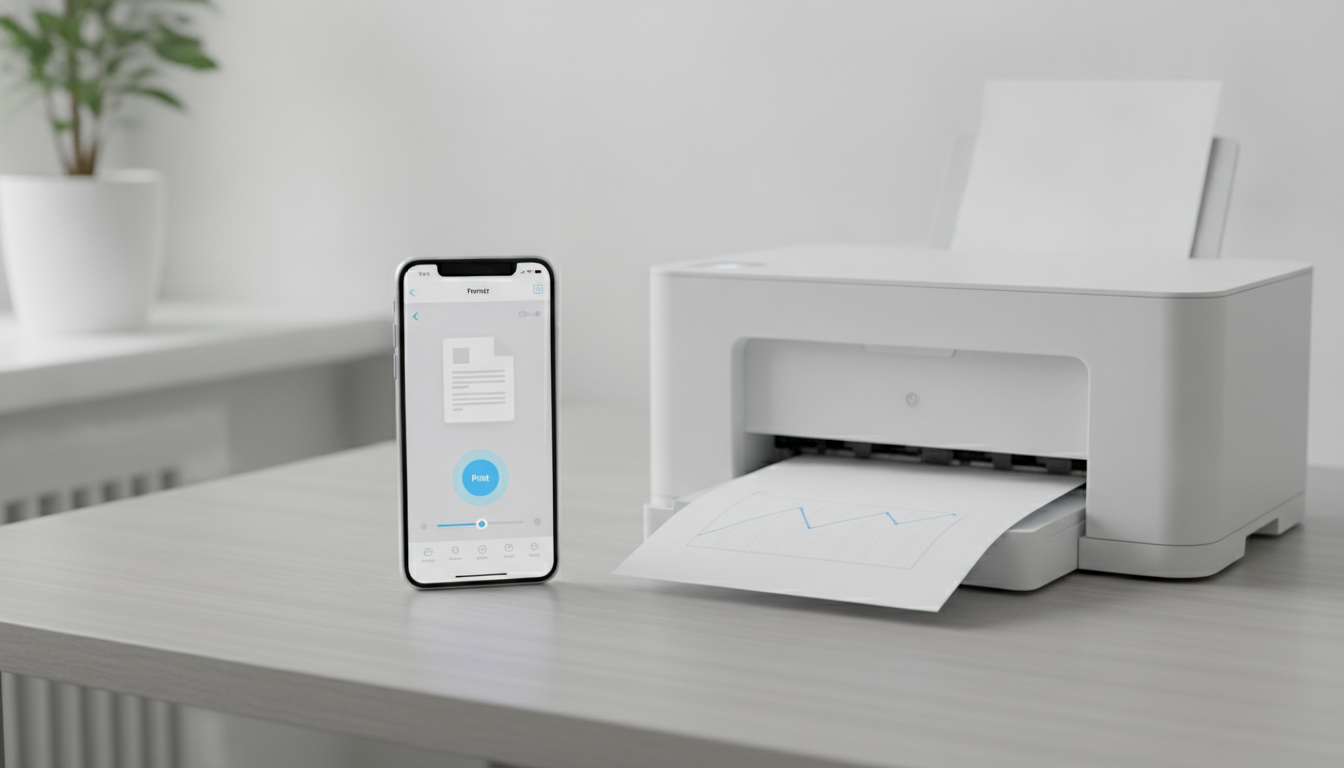
Smart Printer fills this critical void, transforming your iPhone or iPad into a truly capable mobile print station. It integrates advanced scanning, robust document editing, and comprehensive print management into one intuitive app, all while leveraging the power of AirPrint. This means you can execute complex printing tasks directly from your device, streamlining workflows and enhancing efficiency, whether you’re in the office, at home, or on the go. The focus on AirPrint also means that Smart Printer works exclusively within the Apple ecosystem, ensuring a seamless and secure experience for iOS users. The robust feature set of Smart Printer is designed to empower users with the tools they need to manage and print documents with precision, making it an essential utility for anyone seeking to maximize their mobile productivity and move beyond the basic constraints of native printing.
Smart Printer: Your Comprehensive Mobile Print & Scan Hub
Smart Printer isn’t just an app; it’s a complete ecosystem for managing your documents from scan to print, all within the convenience of your iPhone or iPad. It takes the concept of mobile printing to an entirely new level, offering features that far exceed the capabilities of typical built-in printing functions or even many dedicated scanning apps. Let’s explore the robust functionalities that make Smart Printer an indispensable tool for anyone who frequently handles documents.
At its core, Smart Printer boasts advanced scanning capabilities. It transforms your device’s camera into a powerful document scanner, complete with intelligent edge detection, perspective correction, and various filters to enhance readability. Crucially, it supports multi-page scanning, allowing you to digitize entire reports or contracts with ease, automatically organizing them into a single PDF. For an added layer of functionality, its Optical Character Recognition (OCR) feature can convert scanned images into editable and searchable text, saving countless hours of manual data entry. This is a far cry from simply taking a photo of a document; it’s about creating professional-grade digital copies.
Beyond scanning, Smart Printer excels in comprehensive document editing. Once your documents are scanned or imported, you gain full control. Need to sign a PDF? The app provides tools for adding electronic signatures. Annotations, highlights, text additions, and image insertions are all straightforward, allowing you to personalize or revise documents directly on your device. You can easily reorder, rotate, or delete pages within a multi-page document, ensuring the final output is exactly as intended. This level of editing control means you rarely have to transfer files to a computer for minor adjustments before printing.
Cloud integration is another cornerstone of Smart Printer’s utility. In an era where files are scattered across various cloud services, the app provides seamless access to popular platforms like Google Drive, Dropbox, iCloud Drive, and OneDrive. This means you can effortlessly pull documents from any of these services, combine them, edit them, and then print them without ever leaving the Smart Printer environment. This unified access simplifies complex workflows and ensures your most important files are always within reach.
When it comes to printing, Smart Printer offers enhanced print options that give you granular control over your output. Unlike the basic options provided by iOS, Smart Printer allows you to customize layouts, adjust margins, add watermarks for branding or security, and even select specific page ranges or print multiple copies with ease. If your AirPrint-compatible printer supports it, you can also manage duplex (two-sided) printing directly from the app. A critical feature is the print preview, which provides an accurate visual representation of how your document will look before it’s sent to the printer, helping you avoid costly mistakes and wasted paper.
| Feature | Smart Printer App | Native iOS Print Functionality |
|---|---|---|
| Document Scanning | Advanced (OCR, multi-page, edge detection, filters) | Basic (camera roll, no OCR) |
| Document Editing | Comprehensive (signatures, annotations, text, reorder) | Minimal (limited markup) |
| Cloud Integration | Seamless (Google Drive, Dropbox, iCloud, OneDrive) | Basic (Files app integration) |
| Print Options | Advanced (custom layouts, watermarks, margins, duplex) | Limited (pages, copies, paper size) |
| Print Preview | Detailed, accurate | Basic representation |
| File Management | In-app organization, combining files | Relies on external apps |
| Web Page Printing | Cleaned, optimized for readability | Prints as displayed (often cluttered) |
In essence, Smart Printer transforms your mobile device into a powerful document processing and printing hub. It’s designed for users who demand more than just basic connectivity to their printer. It empowers you to manage, edit, and print documents with a level of sophistication previously confined to desktop applications, making it the ultimate AirPrint companion for productivity on the go.
Navigating the Nuances: AirPrint vs. Thermal Label Printers and Smart Printer’s Role
When users search for a “thermal printer app,” their intent often leans towards applications designed for small, dedicated thermal label printers that connect via Bluetooth. These are typically used for printing shipping labels, barcodes, price tags, or receipts, prioritizing speed and compact size over high-resolution document output. The core technology of these devices is thermal printing, which uses heat to produce an image on special paper, eliminating the need for ink cartridges.
However, it’s crucial to distinguish this common usage from the broader world of printing. Smart Printer, while appearing in searches related to “thermal printer app” due to its advanced printing capabilities, operates in a different, yet sometimes overlapping, domain. Smart Printer is built exclusively around AirPrint technology, Apple’s proprietary solution for driverless printing from iOS devices to compatible Wi-Fi printers. AirPrint is designed for document printing on standard paper sizes (A4, Letter, etc.) and supports a vast range of inkjet and laser printers from various manufacturers. The key here is the connectivity method and the type of output – AirPrint for Wi-Fi document printing, versus Bluetooth for dedicated label or receipt printing.
While the primary keyword “thermal printer app” might suggest a focus on labelers, Smart Printer’s strength lies in its ability to enhance the AirPrint experience for any AirPrint-compatible document printer. This includes traditional inkjet and laser printers, but it’s worth noting that some specialized thermal printers do support AirPrint for document printing, particularly those used in certain business environments for specific document types. However, Smart Printer does not specifically cater to the Bluetooth-connected thermal label printers that dominate the “thermal printer app” search landscape. For those specific labeling needs, you would typically look for dedicated label printer apps designed for those devices.
Smart Printer’s role is to provide an advanced interface and feature set for the AirPrint ecosystem. It doesn’t care whether your AirPrint-enabled printer uses inkjet, laser, or even thermal technology (if it’s an AirPrint-compatible document printer); its value comes from augmenting the process of getting your documents from your iOS device to any compatible printer. It offers the scanning, editing, and formatting tools that AirPrint itself doesn’t provide, thereby making the entire mobile printing workflow more robust and professional.
Therefore, if you’re looking for an app that provides sophisticated control over your document printing from an iPhone or iPad to an AirPrint-enabled printer, Smart Printer is an ideal choice. It broadens the utility of your existing AirPrint hardware, ensuring that complex print jobs are just as manageable from your mobile device as they would be from a desktop. Understanding this distinction is key to appreciating Smart Printer’s unique value proposition in the mobile printing landscape, especially for users who might initially be searching for a “thermal printer app” but actually need a powerful AirPrint document solution.
Unlocking Productivity: Practical Applications of Smart Printer
Smart Printer is more than just a utility; it’s a productivity enhancer that seamlessly integrates into various aspects of your daily life, transforming how you interact with documents and your AirPrint-compatible printer. Its advanced features cater to a diverse user base, from busy professionals to diligent students and organized home users. By providing a comprehensive suite of tools, Smart Printer ensures that your iPhone or iPad is always ready for any document-related task, making it an indispensable part of your mobile workflow.
For professionals, Smart Printer is a game-changer. Imagine being on a business trip and needing to quickly print an updated contract, an invoice, or a presentation slide deck. With Smart Printer, you can retrieve files from your cloud storage (Google Drive, Dropbox, etc.), make last-minute edits, add your digital signature, and print directly to any available AirPrint printer at your hotel or client’s office. Scanning receipts on the go for expense reports becomes effortless with its advanced scanning and OCR capabilities, allowing you to digitize and organize financial documents instantly. The ability to combine multiple PDFs into a single, cohesive document and then print them with custom headers or footers streamlines administrative tasks and enhances your professional image. This level of mobile flexibility means you’re never truly away from your office, empowering you to maintain peak productivity regardless of your location. For more general advice on printing from your Apple device, you can always refer to resources like how to print from iPhone.
Students will find Smart Printer invaluable for academic success. From scanning textbook pages for research, converting notes into editable text with OCR, to combining lecture slides with personal annotations for study guides, the app supports a multitude of learning activities. Printing assignments, research papers, or study materials directly from their iPad or iPhone to a campus AirPrint printer or a home device becomes a streamlined process. The ability to preview documents before printing helps save paper and ink, which is always a bonus for a student budget. Organizing digital copies of handouts and readings into easily searchable PDFs further enhances study efficiency.
For home users, Smart Printer brings order and convenience to personal document management. Need to print a recipe from a website, but want to remove all the clutter? Smart Printer’s web page printing optimization ensures a clean, readable output. Organizing household bills, important letters, or children’s artwork involves scanning them into digital files, which can then be easily stored in the cloud or printed for physical records. The app helps you declutter your physical space by digitizing documents and ensures that when a physical copy is needed, it’s produced with precision and control. Even for simple tasks like printing family photos, Smart Printer offers more control over layout and quality than native options.
Consider these specific workflow examples:
- Scan, Sign, and Print: You receive a document via email that requires your signature. Open it in Smart Printer, use the in-app tools to sign it, and then print a physical copy to your AirPrint printer, all without leaving the app.
- Cloud to Print: You have several PDF files stored across Google Drive and iCloud that you need to combine into one report. Import them into Smart Printer, reorder the pages, add a cover page, and then print the complete report flawlessly.
- Web Page Cleanup: You want to print an article from a website. Use Smart Printer’s share extension to open the web page, remove ads and unnecessary elements, and then print only the content you need, saving ink and paper.
By integrating robust scanning, comprehensive editing, and advanced printing options, Smart Printer empowers users to manage their documents with unprecedented ease and control directly from their iOS devices. It truly unlocks a new level of productivity, making mobile printing a powerful and professional experience, especially when you understand the full capabilities of what is AirPrint and how an app like Smart Printer maximizes it.
Getting Started with Smart Printer: A Step-by-Step Guide
Embracing the advanced capabilities of Smart Printer for your AirPrint-compatible document printer is a straightforward process designed for intuitive use. Even with its comprehensive feature set, the app maintains an accessible user experience, allowing you to quickly enhance your mobile printing and scanning workflows. Here’s a simple guide to get you started on your journey to smarter printing.
1. Download and Install the App: The first step is to download Smart Printer from the Apple App Store. Simply search for “Smart Printer App Print Scan” or follow the direct link: https://apps.apple.com/us/app/smart-printer-app-print-scan/id1607119070. Once downloaded, the app will appear on your iPhone or iPad home screen, ready for use.
2. Connect to Your AirPrint Printer: Smart Printer leverages Apple’s AirPrint technology, which means connecting to your printer is typically automatic and seamless. Ensure your iPhone or iPad is connected to the same Wi-Fi network as your AirPrint-enabled printer. When you initiate a print job within Smart Printer, the app will automatically discover and list available AirPrint printers on your network. Select your desired printer, and you’re good to go. There’s no complex driver installation or setup required, staying true to the AirPrint ethos of simplicity.
3. Perform a Basic Scan and Print: To try out the scanning feature, tap the “Scan” icon within the app. Your device’s camera will activate. Position your document, and the app’s intelligent edge detection will automatically identify the document boundaries. Capture the image, and you’ll have options to crop, rotate, and apply filters to enhance readability. Once satisfied, save the scan as a PDF. From there, you can tap the “Print” option, select your AirPrint printer, preview the document, and send it to print. This simple workflow demonstrates the core power of Smart Printer in a few taps.
4. Explore Document Editing Features: Smart Printer truly shines with its editing capabilities. Open any document within the app (either a new scan, an imported file, or a document from cloud storage). You’ll find a suite of tools at your fingertips:
- Annotations: Highlight important sections, add text notes, or draw freehand.
- Signatures: Create and apply your digital signature to contracts or forms.
- Page Management: Reorder, delete, or rotate individual pages within a multi-page PDF.
- Image Insertion: Add images or logos to your documents. Experiment with these tools to customize your documents before printing. The intuitive interface makes these powerful features easy to master.
5. Access and Print from Cloud Files: To access files from your cloud storage, navigate to the “Files” or “Import” section within Smart Printer. You’ll see options to connect to services like Google Drive, Dropbox, iCloud Drive, and OneDrive. After granting permission, you can browse your cloud folders, select documents, and import them directly into Smart Printer. Once imported, these files can be edited, combined with other documents, and printed using all of Smart Printer’s advanced options. This unified approach means all your documents, regardless of their origin, can be managed and printed from one central app.
By following these steps, you’ll quickly integrate Smart Printer into your daily routines, unlocking a new level of efficiency and control over your document management and printing needs. The app is continuously updated to ensure compatibility and introduce new features, making it a future-proof investment for your mobile office. With Smart Printer, you’re not just printing; you’re managing your documents with intelligence and precision, ensuring that your mobile device is a truly powerful tool for productivity.