The Modern Mobile Office & The Smart Printer App
In today’s fast-paced digital world, our mobile devices have become indispensable tools for productivity. From managing emails on the go to editing documents before a crucial meeting, our iPhones and iPads are central to how we work and live. However, one area that often remains a bottleneck is printing and scanning. The perceived complexity of connecting to printers, managing drivers, and handling various document types can often lead to frustration, hindering the seamless workflow we’ve come to expect from our mobile devices.
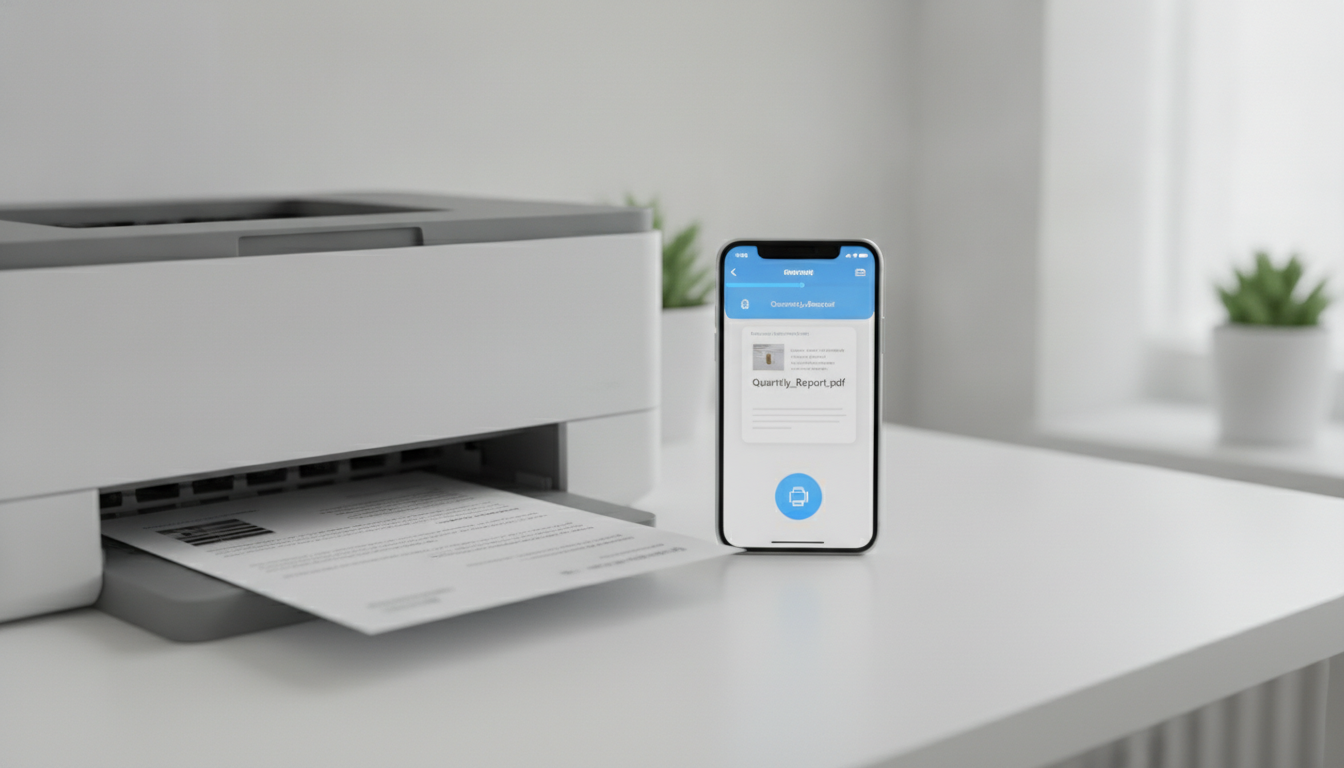
This is where the Smart Printer app for iOS steps in, revolutionizing how you interact with your printer and scanner. Available on the App Store (https://apps.apple.com/us/app/smart-printer-app-print-scan/id1607119070), this powerful application transforms your iPhone or iPad into a comprehensive mobile print and scan station. Designed specifically for AirPrint document printers, it offers an intuitive, streamlined experience that eliminates the traditional hurdles of mobile printing. Whether you’re at home, in a small office, or navigating a larger corporate environment, the Smart Printer app is engineered to simplify your document management tasks.
Many users, particularly in professional settings, often search for a “xerox print app” to manage their printing needs, assuming that a dedicated brand-specific app is the only way to achieve reliable results. While proprietary apps certainly have their place, the beauty of the Smart Printer app lies in its universal AirPrint compatibility. This means that even if you’re in an environment with Xerox printers that are AirPrint-enabled, the Smart Printer app can seamlessly integrate with your existing infrastructure, providing a robust and versatile solution that transcends brand-specific limitations. It’s not just about printing; it’s about empowering your device to effortlessly handle a wide array of document and image tasks, making it an invaluable asset for anyone looking to enhance their mobile productivity.
The emphasis here is on simplicity and broad compatibility through AirPrint. This Apple-exclusive technology allows for direct printing from iOS devices to compatible printers on the same Wi-Fi network, without the need for additional drivers or software. The Smart Printer app harnesses this capability, providing an enhanced interface and additional features that go far beyond the basic AirPrint functionality built into iOS. It’s about providing a richer, more controlled, and more versatile printing and scanning experience directly from the palm of your hand.
Unlocking Seamless Printing with the Smart Printer App
The core strength of the Smart Printer app lies in its profound integration with AirPrint technology, making it the ideal choice for anyone looking to /blog/print-from-iphone/ with unparalleled ease. AirPrint, as you might know, is Apple’s proprietary technology that enables instant printing from iOS and macOS devices to compatible printers over a Wi-Fi network. For a deeper dive into this essential feature, you can explore our guide on /blog/what-is-airprint/. The Smart Printer app takes this inherent capability and elevates it, offering a more robust and feature-rich printing experience.
Gone are the days of transferring files to a computer just to print them. With the Smart Printer app, you can directly print a vast array of document types straight from your iPhone or iPad. Imagine needing to print a last-minute contract, a detailed report, or even a presentation for an upcoming meeting. The app supports common formats like PDFs, Microsoft Word documents (.doc, .docx), Excel spreadsheets (.xls, .xlsx), and PowerPoint presentations (.ppt, .pptx). This comprehensive file support ensures that nearly any document you encounter on your mobile device can be sent to your AirPrint-enabled printer with just a few taps.
Beyond standard office documents, the Smart Printer app is also a fantastic tool for printing images and photos. Whether it’s a cherished family photo from your camera roll, an important screenshot, or graphics for a project, the app allows for high-quality photo printing directly from your device. You can preview your images, adjust print settings like paper size and orientation, and ensure that your physical prints match the digital fidelity you expect. This makes it incredibly convenient for creative professionals, students, or anyone who frequently needs to bring their digital visuals to life.
For those who frequently browse the web and need hard copies of online content, the app offers the ability to print web pages. This is particularly useful for articles, recipes, travel itineraries, or any online information you prefer to have in a physical format. The app intelligently renders web pages for printing, ensuring that layouts are preserved and unnecessary elements are minimized, giving you clean, readable printouts.
The user interface of the Smart Printer app is designed with clarity and efficiency in mind. From the moment you open the app, discovering and connecting to your AirPrint printer is straightforward. The app automatically detects compatible printers on your local Wi-Fi network, presenting them in an easy-to-understand list. Once connected, selecting your document or photo, adjusting print settings, and initiating the print job is a fluid process. This intuitive design minimizes the learning curve, allowing users to become proficient quickly, regardless of their technical expertise.
Consider a scenario where you’re working remotely and need to submit signed documents. You receive a PDF via email, sign it digitally on your iPad, and then need a physical copy for your records or to mail. With the Smart Printer app, this entire workflow can be completed entirely from your iPad. You open the PDF in the app, select your AirPrint printer, and within moments, the document is printed. This level of convenience is what makes the Smart Printer app an essential utility for modern mobile users. Its dedication to AirPrint compatibility ensures that it serves as a reliable bridge between your digital content and the physical world, making printing from your iPhone or iPad not just possible, but incredibly simple and efficient.
Beyond Basic Printing: Scanning, Cloud, and More
The Smart Printer app isn’t just about printing; it’s a holistic document management solution that extends its utility far beyond simply putting ink on paper. Its comprehensive suite of features includes robust scanning capabilities, seamless cloud integration, and advanced document management tools, making it an indispensable asset for both personal and professional use.
One of the standout features is its powerful scanning functionality. Your iPhone or iPad, equipped with the Smart Printer app, transforms into a high-quality mobile scanner. Whether you need to digitize receipts, important contracts, handwritten notes, or old photographs, the app makes it incredibly easy. The built-in scanner uses your device’s camera to capture crisp, clear images of documents. It often includes intelligent edge detection and perspective correction, ensuring that your scans look professional, just as if they came from a dedicated flatbed scanner. This is particularly useful for creating digital backups of physical documents or for sharing them electronically.
Moreover, the app often incorporates Optical Character Recognition (OCR) technology. OCR allows the app to recognize text within your scanned documents, converting them into editable and searchable text files. Imagine scanning a printed article and then being able to copy and paste sections of the text, or search for specific keywords within the document. This feature dramatically enhances the utility of your scanned documents, turning static images into dynamic, workable files. For students digitizing lecture notes or professionals archiving invoices, OCR is a game-changer, saving countless hours of manual data entry.
In today’s interconnected world, cloud storage is paramount for accessibility and collaboration. The Smart Printer app understands this need and offers seamless integration with popular cloud services. You can easily connect your Google Drive, Dropbox, OneDrive, and iCloud accounts directly within the app. This means you can effortlessly retrieve documents stored in the cloud for printing, and conversely, save your scanned documents directly to your preferred cloud service. This two-way synchronization ensures that your files are always accessible, wherever you are, and whatever device you’re using. No more emailing files to yourself or struggling with multiple apps; everything is centralized within the Smart Printer app.
Beyond cloud integration, the app provides excellent internal document management tools. You can organize your files into folders, rename documents, and easily browse your stored content. This internal file system helps keep your digital workspace tidy and ensures that you can quickly locate the documents you need, whether they were scanned, downloaded, or imported from other apps. This capability is especially beneficial for users who handle a large volume of documents and need an efficient way to keep track of them on their mobile device.
The combination of advanced scanning, OCR, and cloud synchronization makes the Smart Printer app a truly versatile tool. It bridges the gap between the physical and digital worlds, allowing you to fluidly move documents from paper to screen and back again. For anyone seeking to streamline their workflow and reduce reliance on traditional desktop setups for printing and scanning, the Smart Printer app offers a powerful, mobile-first solution that puts comprehensive document control right in your pocket.
Why Smart Printer is the Go-To for AirPrint Environments (and for “Xerox Print App” Searches)
When users in a professional setting, especially those with an existing infrastructure, search for a “xerox print app,” they are typically looking for reliability, broad compatibility, and advanced features that integrate seamlessly with their office environment. While Xerox provides its own suite of powerful applications for its devices, the Smart Printer app offers a compelling alternative or complement, particularly for iOS users leveraging AirPrint in diverse printer ecosystems.
The key differentiator for the Smart Printer app is its universal approach to AirPrint. Many offices, even those with a primary brand like Xerox, often have a mix of printer manufacturers. AirPrint acts as a common language for printing across these brands, provided the printers are AirPrint-enabled. The Smart Printer app capitalizes on this, offering an enhanced interface and expanded features that work consistently across any AirPrint-compatible printer. This means that an employee with an iPhone or iPad can use the Smart Printer app to print to a Xerox printer, an HP printer, an Epson printer, or any other AirPrint-enabled device on the network, all from a single, familiar application. This eliminates the need for multiple brand-specific apps, simplifying IT management and user experience.
For organizations that have invested in Xerox multifunction devices, many of these modern machines are indeed AirPrint-enabled. This means that while a “xerox print app” might offer specific advanced features tailored to that brand, the Smart Printer app provides a robust, user-friendly mobile interface for core printing and scanning tasks that work with those Xerox devices via AirPrint. Users gain the flexibility of a universal iOS app without sacrificing the ability to utilize their existing hardware. This is crucial for environments where mobile flexibility and ease of use are prioritized.
Consider a corporate environment where employees frequently use their personal iOS devices for work. Instead of requiring them to install and learn various proprietary printer apps, the Smart Printer app provides a single, intuitive solution that works across the board. This reduces training overhead and increases user adoption of mobile printing. The app’s ability to handle various document types – from PDFs to Office files and images – ensures that most printing needs are covered comprehensively.
Furthermore, the advanced scanning features, including OCR, are incredibly valuable in a business context. Imagine digitizing invoices, contracts, or meeting notes directly from a mobile device and then seamlessly saving them to a corporate cloud storage solution that integrates with the Smart Printer app. This capability empowers mobile workers to be more efficient, reducing reliance on physical documents and traditional scanning stations. This aligns perfectly with the modern push towards paperless offices and digital workflows that many businesses, including those utilizing Xerox technology, are striving for.
The Smart Printer app also excels in offering granular control over print settings directly from your iOS device. This often includes options for duplex printing, color or monochrome output, paper trays, and print quality – features that are essential in a professional environment for managing costs and ensuring document fidelity. While basic AirPrint offers some controls, the Smart Printer app frequently expands upon these, giving users more power over their print jobs without needing to access a desktop computer or the printer’s own control panel.
In essence, while the Smart Printer app is not a “xerox print app” developed by Xerox itself, it serves as an incredibly effective and versatile solution for iOS users in environments that include AirPrint-enabled Xerox devices. It provides a powerful, brand-agnostic tool that enhances mobile productivity, simplifies printing and scanning workflows, and leverages the ubiquitous AirPrint technology to its fullest potential. For any organization or individual seeking a reliable, feature-rich iOS app to manage their printing and scanning needs across a diverse set of AirPrint-compatible printers, the Smart Printer app stands out as an excellent choice.
Distinguishing Smart Printer: Document Printing, Not Labeling
It’s crucial to clarify the specific functionality and target audience of the Smart Printer app to ensure users find the right tool for their needs. The Smart Printer app (https://apps.apple.com/us/app/smart-printer-app-print-scan/id1607119070) is unequivocally designed for AirPrint document printers. This means its primary purpose is to facilitate the printing of standard documents, photos, web pages, and scanned files on conventional inkjet or laser printers that support Apple’s AirPrint technology. It is not designed for Bluetooth labelers or specialized label printing tasks.
This distinction is important because the world of mobile printing encompasses a wide array of devices and technologies. While the Smart Printer app excels at handling multi-page documents, high-resolution photos, and comprehensive scanning with OCR, it does not support the unique requirements of label printers. Label printers, whether they connect via Bluetooth, Wi-Fi, or USB, typically use specialized thermal printing technology and require specific formatting and drivers for printing labels of various sizes and purposes – from shipping labels to address labels, filing labels, or product barcodes.
If your primary need is to print labels from your iPhone or iPad, the Smart Printer app will not be the appropriate solution. For those specific tasks, you would need to look for dedicated /blog/label-printer-apps/ that are built to communicate with Bluetooth-enabled label printers or other specialized labeling devices. These apps often come with templates for different label types, barcode generation capabilities, and integrations designed for inventory management or shipping workflows. The Smart Printer app, by contrast, focuses on the broader scope of document handling, ensuring compatibility with the vast majority of AirPrint-enabled devices found in homes and offices.
The AirPrint standard itself is primarily geared towards document and photo printing on network-connected printers. It provides a standardized way for iOS devices to discover and print to these printers without needing specific drivers. Bluetooth, while excellent for short-range wireless connections, is less common for full-sized document printers and is more frequently found in compact, portable devices like label printers or photo printers that use proprietary communication protocols.
Here’s a quick comparison to highlight the difference:
| Feature/Capability | Smart Printer App (AirPrint Document Printers) | Dedicated Label Printer Apps (Bluetooth Labelers) |
|---|---|---|
| Primary Function | Document, photo, web page printing & scanning | Label creation and printing |
| Connection Type | Wi-Fi (AirPrint) | Bluetooth (primarily), Wi-Fi, USB |
| Printer Type | Inkjet, Laser (Document Printers) | Thermal (Label Printers) |
| File Formats | PDF, Word, Excel, JPG, PNG, Web Pages | Specific label formats, barcode data |
| Scanning | Yes (with OCR) | No (typically) |
| Cloud Integration | Yes | Less common, or limited to specific label data |
| Target Use Case | Office documents, reports, photos, archives | Shipping, inventory, organization, product labels |
By understanding this clear distinction, users can save time and frustration. If you’re looking to print a multi-page PDF, scan a contract, or print a photo, the Smart Printer app is your go-to. If you need to print a series of barcodes for your product inventory or address labels for mail, you’ll need to seek out an app specifically designed for label printing. The Smart Printer app remains dedicated to providing the best possible experience for document printing and scanning on AirPrint-enabled devices, reinforcing its position as a powerful tool for general mobile productivity.
Maximizing Your Mobile Productivity with Smart Printer
The Smart Printer app is more than just a utility; it’s a productivity enhancer designed to integrate seamlessly into your daily workflow, transforming your iPhone or iPad into a truly versatile mobile workstation. By leveraging the power of AirPrint and combining it with advanced scanning and cloud capabilities, the app empowers you to handle a wide range of document-related tasks with unparalleled efficiency.
One of the most significant ways the Smart Printer app maximizes productivity is by enabling true mobility. No longer are you tethered to a desktop computer for printing or scanning. Whether you’re in a client’s office, a coffee shop, or simply moving between different rooms in your home, as long as you’re connected to the same Wi-Fi network as an AirPrint-enabled printer, you have full control over your documents. This flexibility is invaluable for professionals who are constantly on the move, allowing them to respond to urgent printing needs or digitize important papers on the spot. This directly addresses the need to /blog/print-from-iphone/ quickly and reliably, regardless of your physical location relative to your printer.
The comprehensive file support of the Smart Printer app means you can literally carry your entire office in your pocket. From reviewing and printing detailed financial reports in Excel to distributing meeting agendas in Word, or sharing visual presentations in PowerPoint, the app handles it all. This eliminates the need to convert files or use workarounds, saving precious time and reducing potential errors. The ability to print directly from various cloud services further enhances this, ensuring that your most current files are always accessible for printing, no matter where they are stored.
Consider the time saved with the app’s scanning features. Instead of queuing up at a shared office scanner or investing in a separate device for home use, your iPhone or iPad becomes a portable scanner with powerful OCR capabilities. Quickly digitize receipts for expense reports, convert handwritten notes into searchable text, or archive old photographs with ease. This not only streamlines administrative tasks but also contributes to a more organized digital life, reducing clutter and improving document retrieval. The convenience of scanning directly to cloud storage means your digitized documents are immediately backed up and available across all your devices.
For those in environments that might traditionally rely on brand-specific solutions, such as searching for a “xerox print app,” the Smart Printer app offers a refreshing level of independence and versatility. It provides a consistent, high-quality experience across various AirPrint-enabled printers, ensuring that your mobile printing and scanning needs are met without being locked into a particular ecosystem. This can be particularly beneficial for organizations with mixed fleets of printers or for individuals who encounter different printer brands in their work or personal lives.
Furthermore, the intuitive user interface of the Smart Printer app minimizes the learning curve, allowing users to quickly become proficient. Its clear navigation and straightforward options mean less time spent figuring out how to print or scan, and more time focused on productive tasks. This ease of use is a cornerstone of effective mobile applications and is a key factor in maximizing user adoption and satisfaction.
In summary, the Smart Printer app is engineered to remove the friction associated with mobile printing and scanning. By providing a powerful, user-friendly, and universally compatible solution for AirPrint document printers, it empowers iOS users to truly leverage their devices for comprehensive document management. From quick prints to detailed scans and seamless cloud integration, it’s an essential tool for anyone looking to boost their productivity and streamline their digital and physical document workflows.
Essential Tips for Using Your Smart Printer App
To get the most out of your Smart Printer app and ensure a smooth, efficient printing and scanning experience, consider these essential tips. These recommendations will help you optimize your workflow, troubleshoot common issues, and fully leverage the app’s powerful features, especially when dealing with AirPrint-enabled document printers and even when you might be looking for a robust “xerox print app” alternative.
1. Ensure a Stable Wi-Fi Connection: The Smart Printer app relies on AirPrint, which requires both your iOS device and your printer to be on the same Wi-Fi network. For optimal performance, ensure your Wi-Fi connection is stable and strong. A weak signal can lead to dropped connections or slower print speeds. If your printer isn’t appearing in the app, double-check that both devices are connected to the identical network, not just two different networks from the same router (e.g., 2.4GHz vs. 5GHz bands, if applicable, although most AirPrint works across bands).
2. Keep Your Printer Firmware Updated: Printer manufacturers regularly release firmware updates that can improve performance, add new features, and enhance AirPrint compatibility. Check your printer manufacturer’s website for the latest firmware and follow their instructions to update your device. This can often resolve unexpected printing issues and ensure your printer works seamlessly with the Smart Printer app.
3. Optimize Scan Quality vs. File Size: When using the app’s scanning feature, you’ll often have options for scan quality (e.g., DPI or resolution). Higher quality scans result in larger file sizes. For documents that primarily contain text and don’t require intricate detail, a lower resolution might suffice, leading to faster processing and smaller files that are easier to share and store in the cloud. For photos or documents with fine print, opt for higher resolutions. This balance is key for efficient document management.
4. Leverage Cloud Integration for Accessibility: Make full use of the Smart Printer app’s cloud integration. By connecting your Google Drive, Dropbox, OneDrive, or iCloud accounts, you ensure that your scanned documents are automatically backed up and accessible from any device. This is also incredibly convenient for printing documents that you’ve stored in the cloud, eliminating the need to download them to your device first. This feature significantly enhances your mobile workflow and ensures document continuity.
5. Preview Before Printing: Always take advantage of the print preview feature within the Smart Printer app. This allows you to see exactly how your document or photo will appear on paper before you commit to printing. You can check for correct orientation, page breaks, margins, and overall layout. This simple step can save you ink, paper, and frustration, especially when printing complex documents or web pages.
6. Understand AirPrint Limitations (Apple-Only): Remember that AirPrint is an Apple-specific technology. The Smart Printer app is designed for iOS devices and AirPrint-enabled printers. It will not directly facilitate printing to non-AirPrint printers or from Android devices. If you’re working in a mixed-OS environment, ensure your printers are AirPrint-enabled for seamless use with the Smart Printer app. For a comprehensive understanding of this technology, refer to our article on /blog/what-is-airprint/.
7. Differentiate from Label Printers: As previously highlighted, the Smart Printer app is for AirPrint document printers, not Bluetooth labelers. If your printing task involves labels, barcodes, or specialized media, you’ll need a dedicated label printer app. Using the Smart Printer app for label printing will likely result in unsatisfactory outcomes. If you’re looking for solutions for labels, check out resources like /blog/label-printer-apps/.
8. Explore Advanced Print Settings: Dive into the app’s advanced print settings. Depending on your printer model, these might include options for duplex printing (printing on both sides), color vs. grayscale, paper tray selection, and different print quality modes. Customizing these settings can help you conserve resources, control costs, and achieve the desired output for different types of documents.
By following these tips, you can transform your experience with the Smart Printer app, making mobile printing and scanning from your iPhone or iPad an effortless and productive part of your daily routine. It’s about harnessing the full potential of your mobile device and your AirPrint-enabled printers, whether they are standard office models or those in an environment where you might typically search for a “xerox print app.”
Conclusion: Empowering Your Mobile Productivity with Smart Printer
In a world increasingly reliant on mobile technology, the ability to seamlessly manage documents, print, and scan directly from your iPhone or iPad is no longer a luxury but a necessity. The Smart Printer app emerges as a pivotal tool in this mobile-first landscape, offering a comprehensive and intuitive solution for a wide array of document management needs. From its robust AirPrint integration to its advanced scanning capabilities and cloud synchronization, the app is engineered to empower users, transforming their mobile devices into powerful, portable print and scan stations.
We’ve explored how the Smart Printer app simplifies the process of printing various document types – from critical PDFs and Office files to cherished photos and essential web pages. Its user-friendly interface ensures that even complex tasks become straightforward, making mobile printing accessible to everyone. For those who frequently need to /blog/print-from-iphone/, the app provides an unparalleled level of convenience and reliability, ensuring your digital content can effortlessly transition to physical form.
Beyond just printing, the app’s sophisticated scanning features, including intelligent edge detection and powerful OCR, digitize your physical documents with precision, turning them into searchable and editable files. This capability, combined with seamless integration with popular cloud services like Google Drive, Dropbox, OneDrive, and iCloud, ensures that your documents are always organized, accessible, and securely backed up. This interconnected ecosystem fosters a truly agile workflow, allowing you to work efficiently from anywhere.
Crucially, the Smart Printer app stands out as a versatile choice for any AirPrint-enabled environment. While many users may initially search for a “xerox print app” to handle their office printing needs, the Smart Printer app offers a compelling, brand-agnostic alternative that leverages the universal compatibility of AirPrint. This means it works effectively with a diverse range of printers, including AirPrint-enabled Xerox devices, providing a consistent and feature-rich experience across various hardware. This broad compatibility not only simplifies IT management but also offers users greater flexibility and freedom.
It’s also important to reiterate the app’s specific focus: it is meticulously designed for AirPrint document printers, not for Bluetooth labelers. This clear distinction helps users choose the right tool for the job, ensuring that those needing to print standard documents and photos have a powerful, dedicated solution, while guiding those with label printing needs towards specialized /blog/label-printer-apps/. Understanding /blog/what-is-airprint/ is key to appreciating the Smart Printer app’s core functionality and its Apple-only nature.
In conclusion, the Smart Printer app is more than just an application; it’s an essential component for maximizing your mobile productivity. It bridges the gap between your digital world and physical documents with elegance and efficiency, making mobile printing and scanning an effortless part of your daily routine. Download the Smart Printer app today and unlock the full potential of your iPhone or iPad as your ultimate mobile print and scan companion.